How to Create AI Videos with Seedance 2.0 — Step-by-Step Tutorial
A complete beginner-to-advanced guide for creating AI-generated videos with Seedance 2.0. Learn signup, prompt writing, parameter tuning, and pro tips for stunning results.
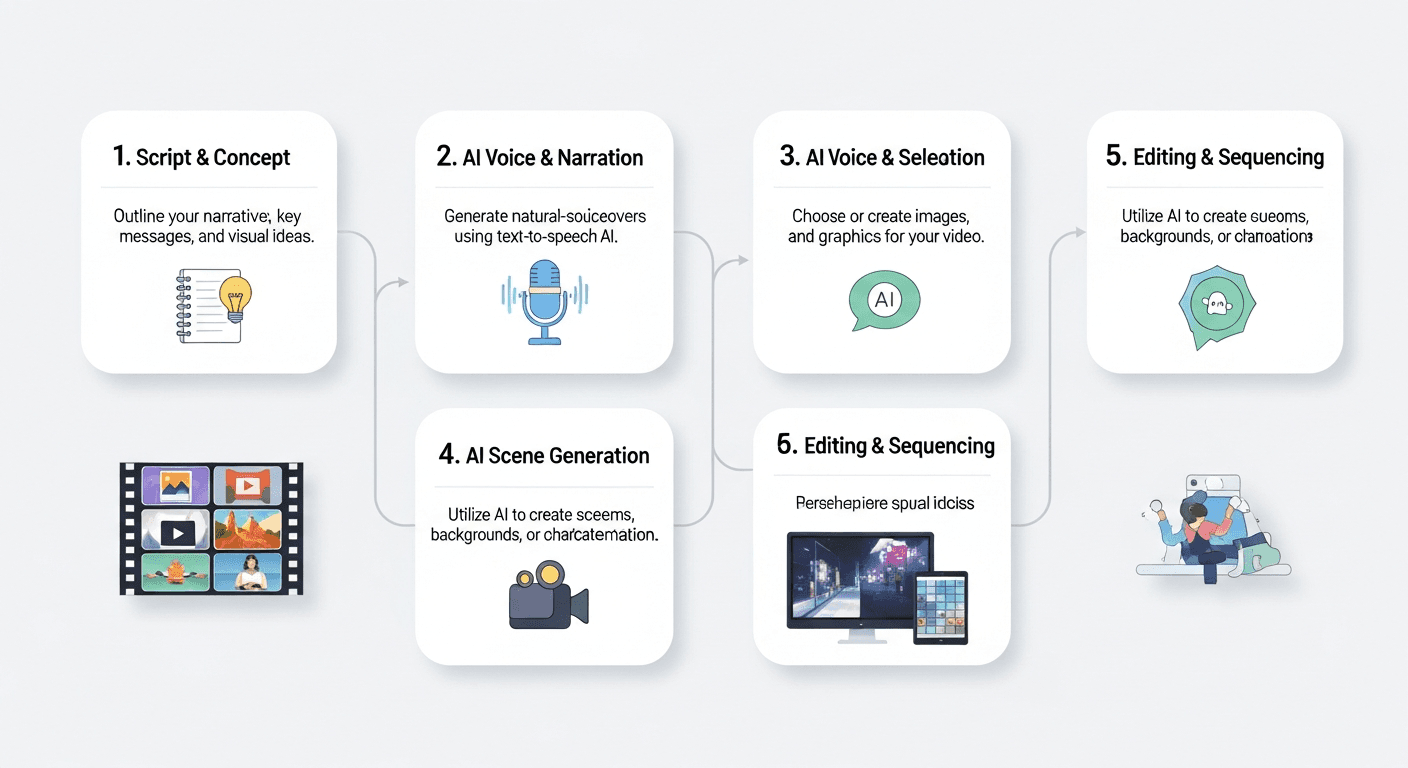
Your first cinematic AI video, from blank page to finished MP4, in under 5 minutes. No software to install, no GPU to rent, no subscription to cancel later. This is the complete beginner-to-pro guide for creating professional video with Seedance 2.0 — the same walkthrough we use to onboard new creators every day.
TL;DR
- Sign up at seedance.it.com and get 50 free credits (no card required)
- Choose a mode: text-to-video or image-to-video
- Write a prompt using the Scene → Subject → Action → Mood framework
- Set duration (4-15 seconds) and aspect ratio
- Generate (takes 40-180 seconds) and download your MP4
- Your first video can be live on TikTok before your coffee cools
What You'll Learn
- How to create your free account and claim 50 credits
- Text-to-video vs image-to-video: when to use which
- The 4-part prompt framework that consistently produces cinema-grade results
- Optimal duration, aspect ratio, and audio settings
- Pro tips from creators generating daily
- The 6 most common beginner mistakes (and how to avoid them)
Prerequisites
You need almost nothing to get started:
- A web browser — Chrome, Firefox, Safari, or Edge
- An email address — for signup
- A rough creative idea — even a one-line concept works
That's it. No installs, no GPU, no technical background, no design experience.
Step 1: Create Your Free Seedance Account
Head to seedance.it.com and sign up. The process takes under 60 seconds:
- Click Sign Up
- Enter your email and create a password — or use Google/GitHub single sign-on
- Verify your email if prompted
- You're instantly credited with 50 free credits
No credit card required. No trial countdown. No "verify your payment method to continue."
Pro tip: The 50 free credits are perfect for testing Seedream image generation (6-8 credits each) and Seedance 1.0 Lite clips (36 credits) before spending credits on a full Seedance 2.0 generation. Use them to learn the platform first.
Claim your 50 free credits
Under 60 seconds to sign up, no card required. Follow along step-by-step with this tutorial.
Sign Up FreeStep 2: Choose Your Generation Mode
Seedance 2.0 offers two input modes. Pick the one that fits your creative starting point.
Text-to-Video
Start from nothing but a written description. Best when:
- You're creating an imagined scene from scratch
- You don't have reference imagery
- You want the AI to handle composition for you
Image-to-Video
Upload a reference image and describe how it should animate. Best when:
- You're animating a product photo or brand asset
- You need exact character consistency
- You want to control the starting frame precisely
Pro tip: For maximum creative control, generate a still image with Seedream first (just 6-8 credits), then feed it into Seedance 2.0's image-to-video mode. You get the best of both worlds.
Step 3: Write a Prompt That Actually Works
The prompt is 80% of your output quality. Here's the framework we recommend:
The Scene → Subject → Action → Mood Framework
Break your prompt into four parts, in this order:
- Scene — Where is this? Environment, setting, background
- Subject — Who or what is the focus? Appearance, position
- Action — What's happening? Specific motion and movement
- Mood — What does it feel like? Lighting, color, style, camera
Compare These Two Prompts
Weak prompt:
A dog running in a field
Strong prompt:
A vast field of golden sunflowers stretching to the horizon under a warm sunset sky. A joyful golden retriever with a glossy coat bounds through the flowers, leaping playfully and sending petals scattering. Warm golden hour lighting, shallow depth of field, cinematic color grading with rich amber tones, slow tracking shot following the dog.
The second prompt will produce a dramatically better video because it tells the model exactly what you want in every dimension.
Five Prompt-Writing Rules
- Be specific about motion. "A woman walking" vs "a woman in a red coat walking briskly along a rain-slicked Tokyo alley, reflections in the wet pavement."
- Use camera language. Terms like
dolly in,tracking shot,close-up,wide establishing,crane shot, andrack focusare all understood. - Describe lighting explicitly. "Golden hour backlight" and "harsh midday sun" produce completely different looks.
- Name the style. Words like
cinematic,documentary,anime,photorealistic, andfilm noirsteer the aesthetic. - Keep it focused. One scene, one action, one mood. Don't try to cram a whole story into 15 seconds.

Want to run this exact prompt yourself? Try this exact prompt now →
Step 4: Configure Your Generation Settings
Before you click generate, dial in these three settings.
Duration (4-15 seconds)
| Length | Best For | Credit Range | |---|---|---| | 4-5s | Social snippets, product flashes, GIF replacements | 243-300 | | 6-10s | Most marketing and creative content | 400-600 | | 11-15s | Establishing shots, narrative beats, atmosphere | 700-910 |
Longer clips consume more credits but let scenes breathe. For your first test, we recommend 5 seconds — cheaper, faster, and plenty for learning how the model responds to your prompts.
Aspect Ratio
- 16:9 — YouTube, websites, presentations, TV-style content
- 9:16 — TikTok, Instagram Reels, YouTube Shorts, vertical ads
- 1:1 — Instagram feed posts, square ad placements
Set this before you generate. You can't reframe a 16:9 clip into a proper 9:16 shot after the fact.
Audio
Seedance 2.0 generates synchronized audio by default — footsteps, ambience, object sounds, environmental textures. Leave it enabled unless you plan to overlay your own soundtrack or voiceover.
Step 5: Generate Your Video
Click Generate. Expect the result in 40-180 seconds depending on duration and server load.
What to Evaluate When It Lands
- Motion quality — Does the movement feel natural?
- Prompt adherence — Did the model interpret your description correctly?
- Artifacts — Any weird morphing, especially hands and faces?
- Consistency — Does the scene hold together start to finish?
- Audio sync — Do the sounds match the visuals?
If the first result isn't quite right, iterate:
- Rephrase the prompt — Different wording produces different results
- Adjust detail — Too vague = too much freedom; too dense = confusion
- Reorder emphasis — Important elements should lead the prompt
- Regenerate — The same prompt can produce meaningfully different variations
Step 6: Download and Use Your Video
Happy with the result? Click Download. You'll get a standard MP4 file (H.264) that works in every major video editor, social platform, and CMS.
Common Next Steps
- Upscale to 1080p/4K — Run through any modern AI upscaler
- Color grade — Apply your brand LUT or adjust in DaVinci Resolve / Premiere
- Overlay audio — Replace or layer music and voiceover
- Stitch multiple clips — Combine 3-4 generations into a 30-60 second edit
Pro Tips From Daily Creators
Tip 1: Start cheap to learn the model. Use Seedance 1.0 Lite at 36 credits to iterate on prompts, then switch to Seedance 2.0 for the final take. You'll burn fewer premium credits on bad prompts.
Tip 2: Save your style descriptions. If you're building a consistent brand look, paste the same style block ("cinematic, warm golden hour, shallow depth of field, 35mm anamorphic") into every prompt.
Tip 3: Chain Seedream + Seedance. Generate a perfect still with Seedream first, then animate it with Seedance 2.0's image-to-video mode. You control the composition; the AI handles the motion.
Tip 4: Batch before you judge. Write 5 prompts in a row, generate them all, then review together. You'll spot patterns in what works and what doesn't.
Tip 5: Let physics guide your prompt. The model is great at realistic physics. Lean into prompts where physics are the star: pouring liquid, falling leaves, cloth blowing in wind.
Stop reading. Start creating.
You've got the framework, the settings, and the pro tips. Now generate your first video.
Try This Exact PromptThe 6 Most Common Beginner Mistakes
- Vague prompts. "A cool video" gives the model nothing to work with. Specify everything.
- Describing cuts or transitions. Each generation is a single continuous shot. Don't write "then it cuts to..."
- Expecting readable text in the video. AI video models, including Seedance, struggle with on-screen text. Add it in post.
- Overloading the scene. Five subjects doing five things rarely works. Keep it focused.
- Ignoring aspect ratio. Pick it before you generate — you can't recompose afterward.
- Burning premium credits on unrefined prompts. Test ideas with cheaper models first, then go to Seedance 2.0 for the final.
Understanding the Credit System
Seedance uses pay-per-use credits. No subscription. Credits never expire.
| Model | Credits | Approx. Cost | |---|---|---| | Seedance 2.0 | 243-910 | $2.43-$9.10 | | Seedance 1.0 Pro | 124 | ~$1.24 | | Seedance 1.0 Lite | 36 | ~$0.36 | | Seedream v3/v4.5/v5 | 6-8 | ~$0.06-$0.08 | | OmniHuman v1.5 | 960 | ~$9.60 |
Credit Tiers
- $10 — 1,050 credits (~3 Seedance 2.0 videos)
- $25 — 2,750 credits (~9 videos) — most popular
- $50 — 5,750 credits (~18 videos)
- $100 — 12,000 credits (~39 videos)
Full details on the pricing page.
FAQ
How long does generation take? Typically 40-180 seconds, depending on duration and server load.
Can I use these videos commercially? Yes. Videos you generate on Seedance can be used for marketing, social, client work, and paid campaigns.
What if I don't love the result? Iterate the prompt and regenerate. Credits are spent per generation, so start with shorter clips while tuning your prompt.
Is there an API? Yes. Full API access is available to all users. Build Seedance into your own app or workflow.
Can I generate videos longer than 15 seconds? Each single generation caps at 15 seconds. For longer content, generate multiple clips and edit them together — most pros find 6-10 second clips stitch best.
Start Creating Right Now
You've read the guide. The only thing left is to actually make something.
Create your free Seedance 2.0 account, claim your 50 credits, and generate your first cinematic video before you close this tab. The whole flow — signup, prompt, generation, download — takes about 5 minutes.
Your first cinema-grade video is 5 minutes away. Start with Seedance 2.0 →
For deeper comparisons, see our best AI video generators of 2026 roundup or head-to-heads like Seedance 2.0 vs Sora and Seedance 2.0 vs Veo 3.