Image to Video AI: Turn Any Photo into a Video with Seedance 2.0
Learn how to transform still images into dynamic AI-generated videos using Seedance 2.0. Covers image preparation, prompt writing for motion, and real-world examples.
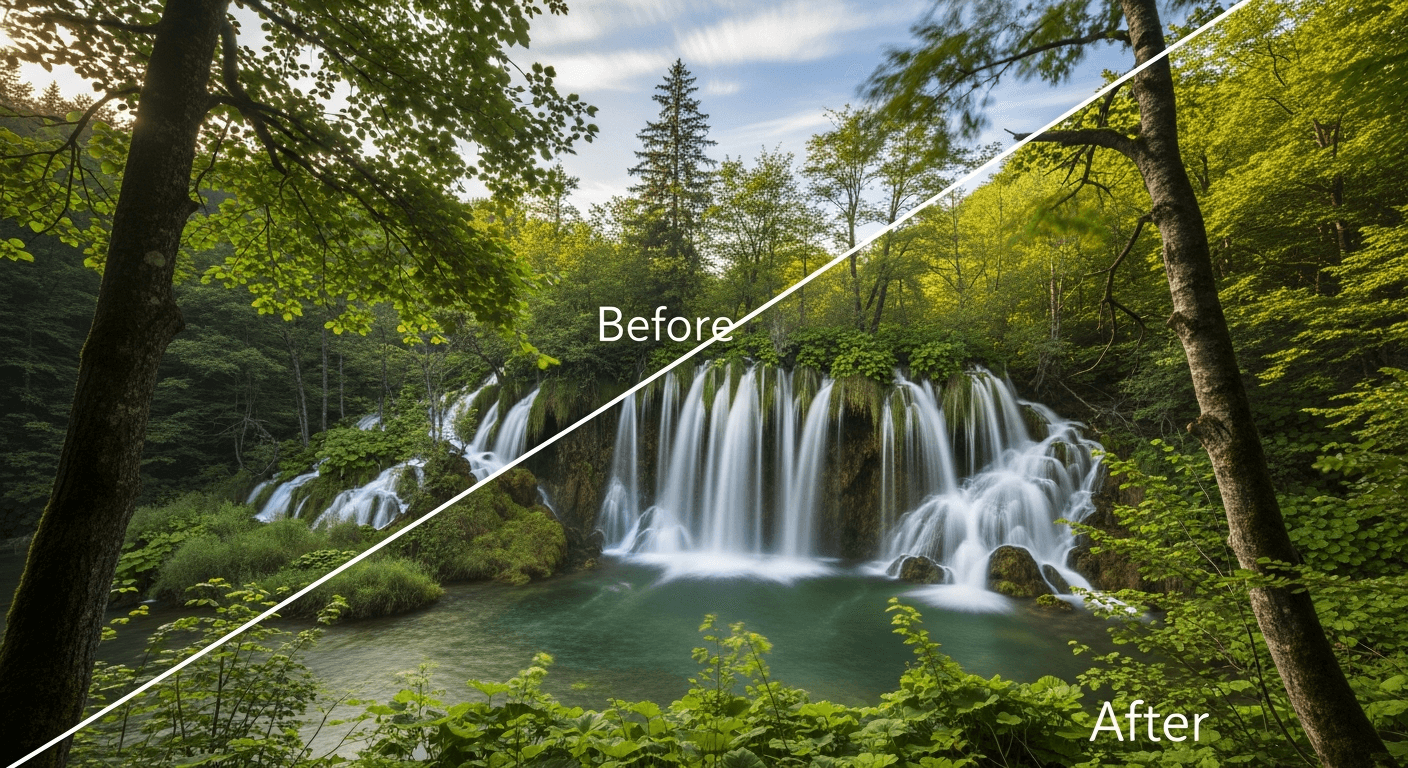
Turn any photo into a 15-second video — for less than $10. That is not a marketing line, it is the literal pricing on Seedance 2.0 image-to-video generation. Upload a photograph, describe the motion you want, and get a cinema-grade clip back in under three minutes.
Image-to-video is the most controllable mode in the Seedance platform. You hand the AI the exact first frame, and it handles the movement. Here is how to use it properly.
TL;DR
- Image-to-video beats text-to-video when you need exact visual control or brand consistency
- A good source image is 1080p+, sharp, well-lit, with room in the frame for motion
- Motion prompts describe movement only — do not describe what the image already shows
- Three models available: Seedance 2.0 (cinema-grade + audio, 304 credits), Seedance 1.0 Pro (1080p, 124 credits), Seedance 1.0 Lite (budget, 36 credits)
- Any existing photo library becomes a video library — photographers, illustrators, and stores win biggest here
Why Image-to-Video Beats Text-to-Video for Some Jobs
Text-to-video is magical when you want to invent a scene from scratch. But the moment you need precision — a specific product, a specific character, a specific brand look — pure text becomes a guessing game. Image-to-video solves the problems text cannot.
Visual precision. You show the model exactly what frame one should look like. No more regenerating because the model put the logo on the wrong side.
Brand consistency. Commercial work demands exact colors, logo placement, and product accuracy. Feed in your approved brand imagery and the video inherits every pixel.
Style lock-in. Want watercolor? Oil painting? Isometric pixel art? Describing those styles in words is unreliable. Handing the model a reference image in that style is not.
Existing asset reuse. Photographers, illustrators, and brands sit on libraries of still images. Image-to-video turns those libraries into video inventory without a single new shoot.
Character consistency. Maintaining the same person across multiple generations is Seedance's hardest problem in pure text-to-video. Using the same reference image across generations locks character appearance.
Upload your first photo
Turn any image in your library into a 15-second cinematic clip. 50 free credits, no card required.
Try Image-to-Video FreeStep 1: Choose the Right Source Image
Garbage in, garbage out. The quality ceiling of your output is set by the quality of your input.
Resolution: 1080p minimum. Higher is better up to 4K. Anything larger will be downsampled.
Focus and clarity: Blurry inputs produce blurry videos. If your photo is soft, fix it before you upload.
Composition: Leave room in the direction you want motion to travel. If the subject is going to walk left, do not crop tight to the left edge.
Lighting: Images with clear, directional lighting animate better than flat, shadowless shots. The model uses lighting direction to plan motion and depth.
Clean elements: No watermarks, no overlaid text, no timestamps. The model treats every pixel as scene content and will distort text during animation.
Format: PNG for illustrations and anything with transparency. JPEG for photographs.
Step 2: Write a Motion Prompt (Not a Description)
This is where most people go wrong. A motion prompt describes movement and dynamics — not the scene itself. The model already sees the image. Do not waste words telling it what is already there.
The Motion Prompt Formula
[Subject motion]. [Camera motion]. [Environmental motion].
[Atmospheric detail].
That is it. Four clauses, each doing one job.
What to Include
- Subject motion — how the main subject moves
- Camera motion — static, push in, pull back, orbit, dolly, crane
- Environmental motion — wind, water, fog, clouds, traffic, particles
- Atmospheric detail — light shifts, weather progression, depth cues
What to Leave Out
- Do not redescribe what is in the image
- Do not request scene changes (day to night, location swap)
- Do not contradict the source (the image is overcast, do not ask for sunshine)
Good vs. Bad Motion Prompts
Bad: "A woman wearing a red coat stands in a snowy forest." (You are describing the image, not the motion.)
Good: "She slowly turns her head to look over her shoulder. Snowflakes drift past her face. Camera holds steady with subtle parallax. Soft mist in the background."
Step 3: Pick Your Model and Parameters
The Seedance platform offers three image-to-video models. Pick based on what the final deliverable is.
| Model | Resolution | Credits | Best For | |---|---|---|---| | Seedance 2.0 | 720p | 243-910 | Cinema-grade motion + native audio | | Seedance 1.0 Pro | 1080p | 48-288 | High-res professional delivery | | Seedance 1.0 Lite | Up to 1080p | 14-84 | Fast, cheap iteration |
Choose Seedance 2.0 when motion quality and native audio matter more than resolution. Most social content, ads, and hero shots live here.
Choose Seedance 1.0 Pro when you need 1080p for large-screen display and will add your own audio.
Choose Seedance 1.0 Lite for drafts, tests, and bulk generations where budget is tight. At around $0.36 per clip you can iterate aggressively.
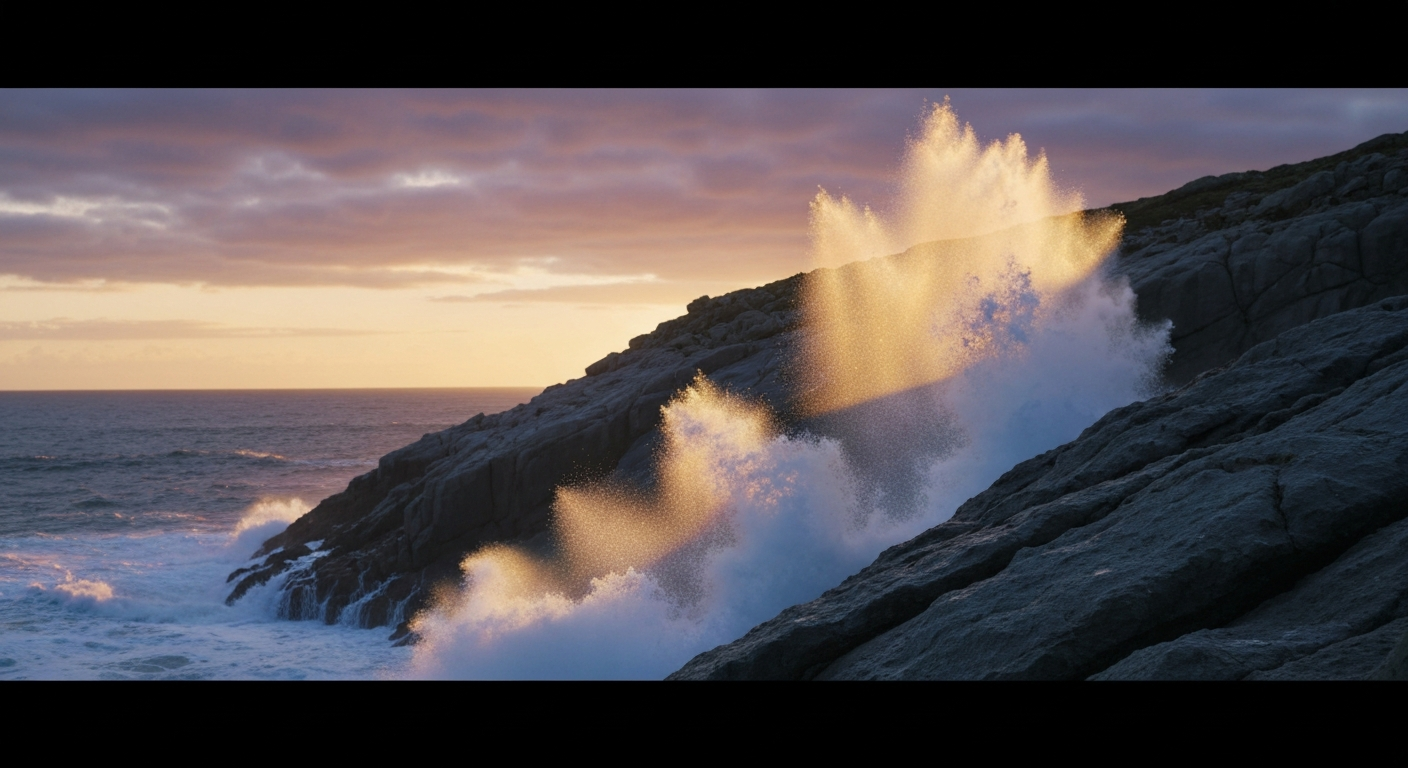
Want to animate your own photos like this? You're 30 seconds away from your first generation. Try Seedance 2.0 free →
Step 4: Generate and Review
Hit generate and wait 30 seconds to 3 minutes depending on model and duration. When the clip comes back, check four things:
- Does the subject look like the source? Slight warping at extremities is normal; face or product distortion is not.
- Is the motion natural? Jerky, snapping, or impossible physics mean the prompt asked for too much.
- Does the background hold? Elements you wanted static should stay static.
- Is the lighting consistent? Flickering or shifting light usually indicates over-prompting.
If any check fails, adjust the prompt and regenerate. Reducing motion complexity fixes most problems.
Example Transformations
Luxury Watch on Dark Marble
Source: flat-lay photograph of a titanium watch on black marble.
Prompt: "The watch rotates slowly to reveal the side profile and crown. Subtle reflections sweep across the glass face. Camera orbits 45 degrees from the right. Dramatic side lighting stays consistent."
Result: a 6-second rotating product hero shot suitable for a PDP or social ad.
Modern Living Room Interior
Source: real estate photograph of a sunlit living room.
Prompt: "Camera slowly glides forward into the room. Sheer curtains sway gently in a breeze. Sunlight shifts subtly across the floor as if clouds are passing overhead."
Result: a 10-second interior walkthrough that turns a static listing into an immersive preview.
Anime Character Portrait
Source: digital illustration of a character in anime style.
Prompt: "Hair flows gently in the wind. Cherry blossom petals drift diagonally through the frame. Eyes blink once, slowly. Subtle parallax between foreground and background layers."
Result: a 7-second animated portrait that preserves the illustration style exactly.
Mountain Lake at Dawn
Source: landscape photograph of a calm mountain lake.
Prompt: "Gentle ripples spread across the lake surface. A thin mist rises from the water. Clouds drift slowly from left to right. Camera pushes forward toward the far shore."
Result: a 12-second atmospheric landscape perfect for an opening shot or ambient reel.
Lifestyle Portrait with Coffee
Source: candid photograph of a person holding a latte in a cafe.
Prompt: "She lifts the cup slowly and takes a sip. Steam curls upward from the rim. Her eyes smile over the cup. Camera holds steady with shallow focus on her face."
Result: a 5-second lifestyle clip ready for Instagram or a brand feed.
Troubleshooting Common Issues
Subject warps or stretches: reduce motion complexity and use a higher-resolution source.
Unwanted background motion: add "static background, only the subject moves" to the prompt.
Motion looks jerky: add adverbs — "slowly", "gently", "smoothly". Shorten the duration.
Style drifts from source: strip style words from your prompt. The image already dictates style.
Camera and subject fighting each other: pick one. If the subject has complex action, keep the camera static.
The Seedream to Seedance Pipeline
The most powerful image-to-video workflow does not start with an existing photo — it starts with a generated one.
- Generate the perfect still frame with Seedream at 6-8 credits. Iterate cheaply until the composition is right.
- Feed that image into Seedance 2.0 image-to-video with a motion-only prompt.
- Ship the video.
Why this works: iterating on stills at 6-8 credits is 40x cheaper than iterating on video. You lock composition first, then commit to motion only when you know the frame is right. This is how professional AI video creators keep costs predictable.
Stop reading. Start animating.
Pick any photo from your library and turn it into cinema. 50 free credits, no credit card.
Animate Your First PhotoStart With One Photo From Your Library
The easiest way to understand image-to-video is to try it on a photo you already love. Pick one portrait, one product shot, or one landscape you already have on your phone. Upload it, write four clauses of motion, and hit generate. You get 50 free credits on signup — enough to run your first full Seedance 2.0 clip.
Ready to bring your photos to life? Start creating free →