AI Lip Sync with OmniHuman v1.5: Audio-Driven Avatars
A technical deep dive into OmniHuman v1.5's lip synchronization technology. Learn how phoneme extraction, viseme mapping, and temporal alignment work together to create frame-accurate lip sync for AI avatar videos.
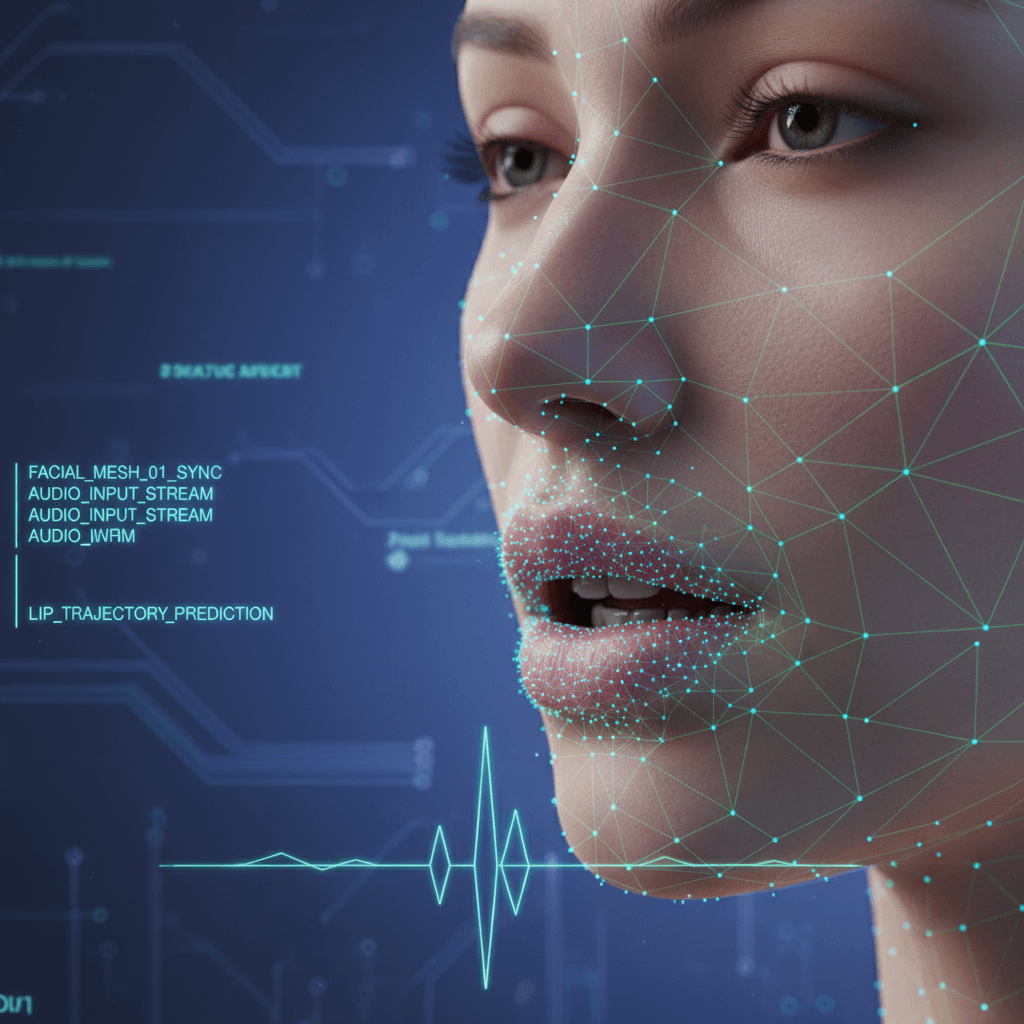
Most AI avatars fail the lip sync test within three seconds: mouths open and close roughly in time with the audio, but the specific shapes do not match the actual sounds being spoken. OmniHuman v1.5 closes that gap by mapping phonemes — the atomic units of speech — to precise mouth configurations on every single frame. This is how you get lip sync that holds up when viewers watch closely with sound on.
TL;DR
- OmniHuman v1.5 uses phoneme-level lip sync, not just timing-based mouth animation
- The model extracts speech sounds from your audio and maps them to visemes (mouth shapes)
- Clean audio input dramatically improves sync accuracy
- Each lip-synced video costs $9.60 (960 credits) with no subscription
- Works across any spoken language with strong training representation
Why Most AI Lip Sync Falls Short
Legacy avatar tools typically take one of two shortcuts:
Timing-only animation. The mouth opens and closes based on audio volume peaks. Loud moments = open mouth, quiet moments = closed mouth. This looks passable from a distance but fails immediately on close viewing because the specific shapes are wrong.
Fixed viseme cycling. A small library of generic mouth shapes loop in response to broad speech categories. These are better than pure volume-driven animation but still miss the subtle distinctions between similar sounds.
The result in both cases is the "uncanny valley of mouth movement" — something that reads as almost-real but clearly synthetic to anyone paying attention.
Create your AI presenter now
Turn one photo + audio into a lifelike talking video. $9.60 per video, no subscription.
Try OmniHuman FreeWhat OmniHuman v1.5 Does Differently
OmniHuman v1.5 treats lip sync as a structured speech-to-shape mapping problem. The pipeline runs in four stages.
Stage 1: Phoneme Extraction
Your audio passes through an acoustic model that identifies individual phonemes — the smallest units of distinct sound in spoken language. English has around 44 phonemes. Spanish has about 24. Mandarin has a different set again. The model recognizes phonemes with timing accuracy to the millisecond.
Stage 2: Viseme Mapping
Each phoneme is mapped to one or more visemes — visually distinct mouth shapes. A viseme for "/p/" shows lip closure before release. A viseme for "/f/" shows upper teeth on lower lip. A viseme for "/o/" shows rounded open mouth. The phoneme-to-viseme mapping is language-aware and considers context.
Stage 3: Temporal Alignment
Visemes are aligned to specific video frames based on phoneme timing. At 30 frames per second, each frame gets the mouth shape that matches the exact slice of audio it represents. Transitions between visemes are smoothed to avoid jittery mouth movement.
Stage 4: Diffusion Rendering
The final rendering stage generates the actual pixels, incorporating the viseme information along with identity features from the reference photo, prosody-driven facial expression, and the scene prompt. The mouth is not "pasted on" — it is generated as part of each frame.
Why This Matters for Viewers
Here is what phoneme-level lip sync looks like in practice when you pay attention to specific sounds.
Plosives (p, b, t, d, k, g): Lip or tongue closure before the sound, then release. OmniHuman shows the closure clearly.
Fricatives (f, v, s, z, sh, th): Air flowing through a constricted point. "F" and "V" require upper teeth on lower lip, which OmniHuman reproduces accurately.
Vowels (a, e, i, o, u): Different degrees of jaw opening and lip rounding. "Oh" and "Ah" look distinct, as they should.
Diphthongs (oi, ou, ay): Gliding transitions between two vowel shapes. The model renders the motion smoothly across frames.
Nasals (m, n, ng): Closed mouth or nearly closed with airflow through the nose. The subtle difference between "m" (lips closed) and "n" (tongue to alveolar ridge) shows through slight jaw positioning.
When all of this is handled correctly, you stop noticing the lip sync at all. That is the goal — invisibility.
How to Get the Best Lip Sync
Your audio input quality is the single biggest factor in lip sync accuracy. Here is how to optimize.
Use Clean, Isolated Speech
Music, background chatter, heavy ambient noise, and room reverb all interfere with phoneme extraction. Before uploading audio:
- Remove or duck any music or sound effects
- Record in a quiet room or use a noise gate
- Avoid rooms with strong echo
- Do not bake in effects like heavy compression or EQ
Aim for Professional Recording Quality
You do not need a broadcast studio, but a USB condenser microphone in a quiet room beats a laptop mic every time. Target specs:
- 44.1 kHz or 48 kHz sample rate
- 16-bit or 24-bit depth
- Mono or stereo both acceptable
- Peak levels around -3 dB, no clipping
Speak at a Natural Pace
Rushed or monotone speech produces less convincing lip sync than natural, varied delivery. Speak the way you would in a real conversation, with natural pauses and emphasis.
Trim Leading and Trailing Silence
OmniHuman generates video for the full audio duration. If your audio starts with 3 seconds of silence, you waste frames. Trim tight.
Stay Within Duration Caps
OmniHuman v1.5 supports up to 60 seconds at 720p and 30 seconds at 1080p. Clips near the cap sometimes see quality dips at the last frames. Aim for a second or two under the limit.
Ready to try OmniHuman v1.5? Start creating free →

Want a presenter like this? Try OmniHuman free →
Language-Specific Considerations
Phoneme sets differ across languages, and the model's accuracy varies with training data representation.
Widely Trained Languages
English, Mandarin, Spanish, Portuguese, French, German, Japanese, and Korean all receive high-accuracy lip sync. These languages have robust training data, and phonemes are mapped to visemes with frame-level precision.
Well-Supported Languages
Italian, Russian, Arabic, Hindi, Indonesian, Vietnamese, and Turkish work reliably with strong lip sync quality. Minor variations in regional accents may affect specific phonemes slightly.
Emerging Language Support
Less-common languages work, but accuracy on rare phonemes may be lower. Test with a short sample before committing to a large production.
For multi-language projects, see the multilingual guide for voice recommendations and localization workflows.
Common Lip Sync Issues and Fixes
Mouth movements feel slightly delayed
Cause: Audio file has silent padding at the start, or compression artifacts have shifted phoneme timing. Fix: Trim leading silence, re-export at higher bitrate (MP3 192kbps or higher, or WAV).
Mouth shapes look too generic
Cause: Audio is noisy or muddy, hurting phoneme extraction. Fix: Re-record in a quieter space, or run the audio through a noise-reduction tool.
Sync works for vowels but consonants look soft
Cause: Low-quality microphone or heavy compression softening consonant transients. Fix: Use a better mic, reduce compression, or use TTS which produces cleaner consonants.
Lip sync breaks on certain accents
Cause: Regional accent phoneme variants may be underrepresented in training data. Fix: Try a neutral accent voice for the same language, or use professional-grade TTS with selectable regional voices.
Sync drifts on longer clips
Cause: Audio clock and video clock getting out of alignment at the extreme end of duration. Fix: Stay a second or two under the duration cap. Split longer content into segments.
Testing Lip Sync Quality
Before committing to a long production run, test with a short sample.
The 10-Second Test
- Record a 10-second audio clip with this exact sentence: "Peter picked pepper, five fish fried, shy shepherds sigh."
- Upload with your chosen reference photo to OmniHuman v1.5
- Generate and play at 100% size
- Watch for:
- Clear lip closure on "P" sounds
- Upper teeth on lower lip for "F"
- Different mouth shapes for "sh" and "s"
- Clean transitions between phonemes
If the 10-second test looks clean, the 30-60 second production will look clean too.
Side-by-Side Comparison
Play OmniHuman output next to your reference audio in headphones. Close your eyes, then open them. If the mouth movements feel "obvious" when you refocus on the video, the sync is working. If they feel "wrong," something in the audio pipeline needs attention.
How Lip Sync Fits the Full Generation Pipeline
Lip sync is one of several parallel systems running during OmniHuman generation. The full pipeline includes:
- Identity preservation from the reference photo
- Facial expression driven by audio emotion and prosody
- Head motion that correlates with speech rhythm
- Shoulder and upper-body gestures synced to emphasis
- Background and scene rendering from your prompt
- Temporal coherence across frames
Lip sync does not exist in isolation — it is one layer of a larger generative system. When everything works together, viewers see a natural recording rather than a talking head with good mouth movement.
For the full technical overview, see the complete OmniHuman v1.5 guide.
Phoneme-accurate sync, flat $9.60
No sync-quality tiers, no subscription. One price per video — HeyGen and Synthesia charge monthly whether you generate or not.
Test the SyncCost and Access
Every OmniHuman v1.5 generation — including lip sync — costs 960 credits (~$9.60). No per-second pricing, no lip-sync premium, no tiered sync quality. You get the same phoneme-level accuracy on every render.
New Seedance accounts receive 50 free credits on signup. A $10 Starter pack gets you 1,050 credits, enough for one full generation plus exploration. See the pricing guide for full details.
Start Testing Lip Sync Quality
- Sign up for Seedance and claim 50 free credits
- Buy a $10 Starter pack
- Prep a short tongue-twister audio clip and a portrait photo
- Open OmniHuman v1.5
- Generate and evaluate
For deeper context, see the complete OmniHuman v1.5 guide, the talking head tutorial, and the multilingual guide.
Ready to try OmniHuman v1.5? Start creating free →