How to Create AI Infographics with Seedream 5.0 Lite
Create stunning AI-generated infographics with Seedream 5.0 Lite — data visualization, text rendering, layout composition, and step-by-step tutorials for informational graphics.
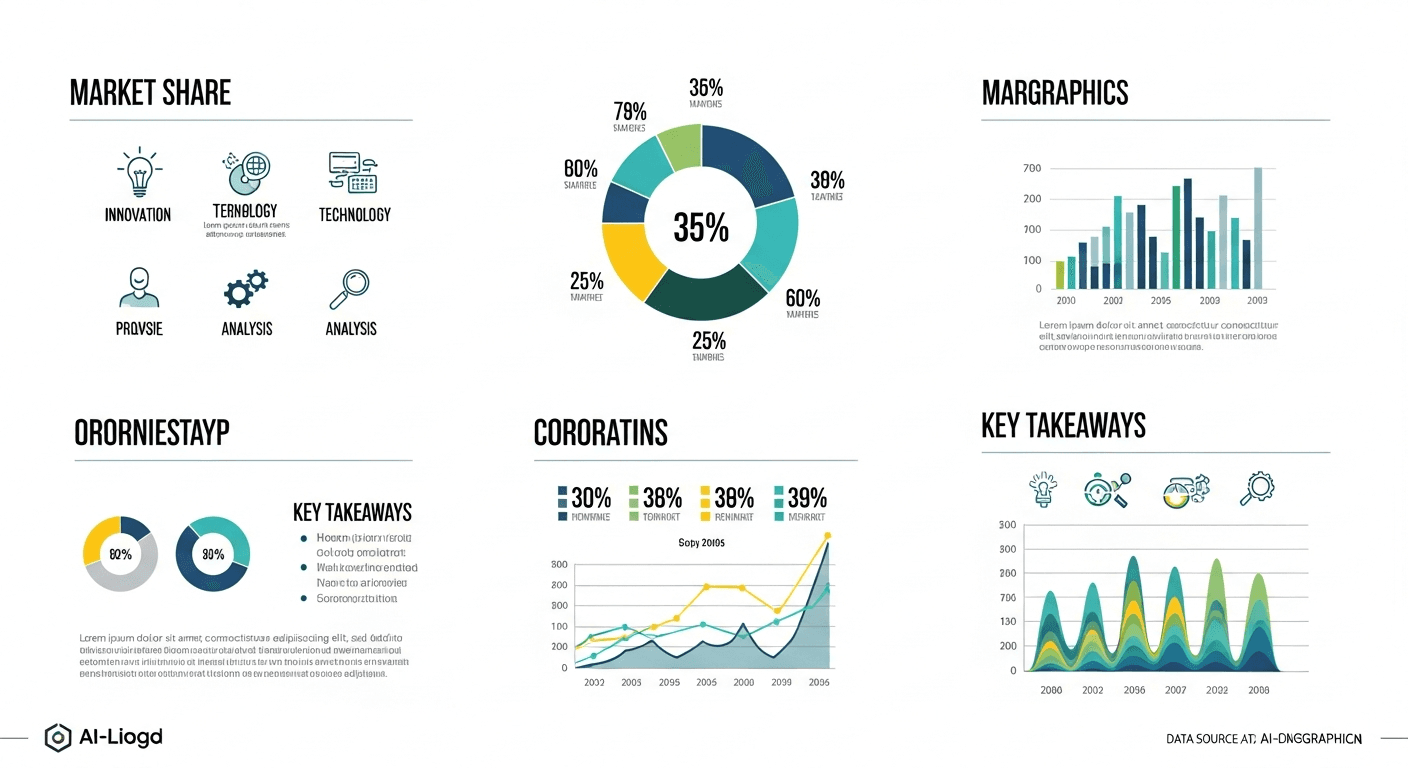
Articles with infographics get 178% more inbound links. Infographics get shared 3x more than any other content type. Yet a professionally designed one costs $1,000-$5,000 from an agency. Seedream 5.0 Lite builds infographic-quality panels for under $1 total — the text rendering finally makes AI-generated infographics viable.
TL;DR
- Text rendering is what makes AI infographics work — Seedream 5.0 Lite nails it
- $0.21-$0.84 for a complete 3-12 panel infographic
- Generate panels individually, assemble in Canva or Figma for the final
- Under 20 minutes for a complete professional infographic
- 178% more inbound links for articles with infographics vs text-only
Why Infographics Still Dominate
Infographics get shared on social 3x more than any other content type. Articles with infographics receive 178% more inbound links. They're one of the highest-ROI content formats on the web.
The problem: production cost. A professional infographic from an agency costs $1,000-$5,000. Canva takes 2-4 hours of design work per graphic. High-quality infographics have traditionally been out of reach for most creators and small businesses.
Seedream 5.0 Lite changes the math. AI-generated panels — section headers, data visualizations, icon sets, callouts — assemble into complete infographics in a fraction of the time at pennies on the dollar. Full feature overview in our complete guide.
See the text rendering yourself
The only AI model that gets text right. $0.07 per image, 50 free credits.
Try Seedream 5.0 Lite FreeWhy Seedream 5.0 Lite Specifically
Perfect Text Rendering
Infographics are text-heavy — headings, data labels, callouts, statistics. Seedream 5.0 Lite's text pipeline produces clean readable text essential for informational graphics.
Deep Thinking for Layout
Infographic layouts require careful spatial reasoning — visual hierarchy, logical order, reading flow. Deep thinking mode reasons about these relationships.
Consistent Style and Color
Good infographics use consistent palettes and visual styles throughout. Style and color transfer ensure every panel matches the overall design system.
Data Visualization Reasoning
When you describe a data relationship ("show growth from 10 to 50 over five years"), multi-step reasoning figures out how to represent it visually — proportional scaling, correct label placement, appropriate visualization type.
Types of Infographics
Statistical — research findings, surveys, industry stats
Process/How-To — tutorials, workflows, recipes, instructions
Comparison — product comparisons, before/after, pros/cons
Timeline — company history, project roadmaps, historical overviews
List — tips, resources, tools, recommendations
Geographic — regional data, distribution patterns, market coverage
The 5-Step Workflow
1. Define Your Content
Outline before generating:
- Title — clear, compelling headline
- Key data points — 5-8 main stats or facts
- Sections — 3-5 logical groupings
- Conclusion/CTA — what action should viewers take
2. Choose Visual Style
| Style | Best For | Keywords | |---|---|---| | Flat/modern | Tech, SaaS, business | "flat design, modern, clean" | | Illustrated | Education, lifestyle | "hand-drawn style, illustrated, friendly" | | Photographic | Products, food, travel | "photographic elements, realistic" | | Minimalist | Finance, data-heavy | "minimalist, white space, clean lines" | | Bold/graphic | Marketing, social media | "bold colors, graphic design, high impact" |
3. Generate Section Panels
Build individually, assemble later. Don't try to generate one massive image.
Header panel:
Infographic header panel, text "[TITLE]" in bold [FONT],
[COLOR_PALETTE], [STYLE] design aesthetic, clean professional
layout, wide format, informational graphic style
Statistics panel:
Infographic statistics section, text "[STAT NUMBER]" in large
bold font with "[STAT DESCRIPTION]" below in smaller text,
[ICON/VISUAL] accent, [COLOR_PALETTE], clean data visualization,
flat design
Process step panel:
Infographic step panel, circular number "[STEP_NUMBER]" badge,
text "[STEP TITLE]" in bold with "[STEP DESCRIPTION]" below,
[ICON] illustration, [COLOR_PALETTE], clean layout,
instructional design style
4. Assemble and Polish
Use Canva, Figma, or any image editor to stack panels vertically. Add connecting elements (lines, arrows) between sections.
5. Export
- PNG — web, social media
- PDF — download, print
- Multiple formats — different channels
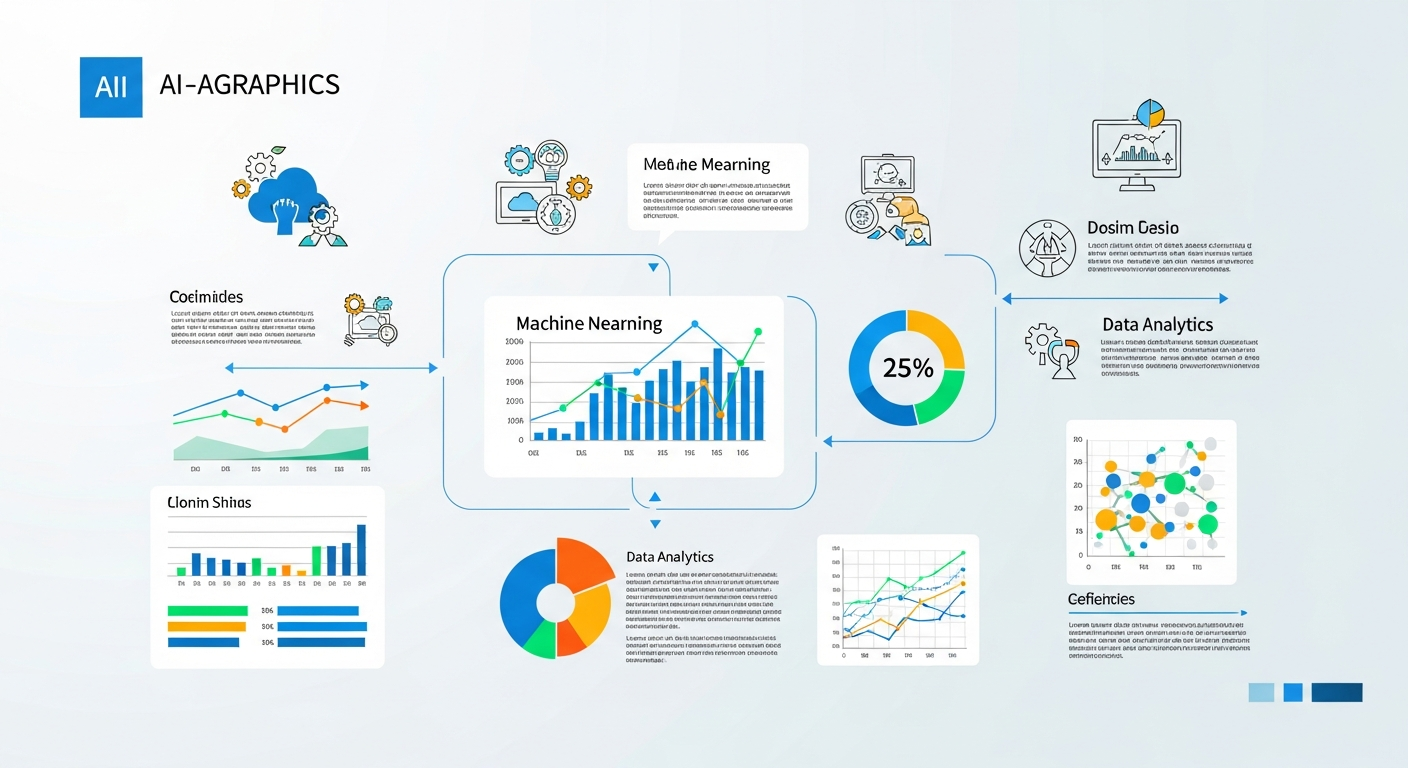
Want text this clean? Try Seedream 5.0 Lite free →
Text Rendering for Data Labels
Text rendering is what makes AI infographics viable at all.
Text Guidelines
| Element | Size | Prompt Instruction | |---|---|---| | Main title | Largest | "large bold headline font" | | Section headings | Medium-large | "medium bold heading" | | Data labels | Medium | "clear readable label text" | | Body text | Avoid in AI generation | Use HTML/CSS overlay instead | | Source citations | Small | Add in post-production |
Tips for Clean Text
- Keep each panel to 1-3 text elements max
- Use numbers and short phrases, not sentences
- Specify font weight: "bold", "heavy", "light"
- Always enable deep thinking for text panels
- Generate multiple variations, pick the cleanest
Large Numbers Work Best
Infographic statistic panel, large text "87%" in bold [COLOR]
font, subtext "of users prefer visual content" in smaller
[COLOR] font below, [ICON] accent, clean flat design,
[BACKGROUND_COLOR] background
Numbers and short words render with the highest accuracy — statistical infographics are a natural fit.
Color Schemes
Proven Palettes
| Name | Colors | Best For | |---|---|---| | Corporate Blue | Navy, sky blue, white, gray | Business, finance, tech | | Warm Professional | Orange, charcoal, cream, gold | Marketing, real estate | | Fresh Green | Emerald, mint, white, dark gray | Health, environment, growth | | Bold Contrast | Red, black, white, yellow | Urgency, impact | | Soft Pastel | Lavender, blush, sage, cream | Education, wellness, beauty | | Dark Mode | Dark gray, teal, white, accent | Technology, data, modern |
Specify Colors Precisely
Infographic panel with navy blue (#1A365D) background,
white (#FFFFFF) text, sky blue (#63B3ED) accent elements,
clean professional color scheme
Or use descriptive palettes:
Infographic panel using a warm corporate palette — deep orange
headings, charcoal body text, cream background with gold accents
Panel Prompt Templates
Statistical Panel
Clean infographic statistics panel, [STYLE] design,
text "[PERCENTAGE/NUMBER]" in large bold [COLOR] font centered,
text "[DESCRIPTION]" below in [SMALLER_SIZE] [COLOR],
[SIMPLE_ICON] illustration above, [BACKGROUND],
flat design, informational
Comparison Panel
Side-by-side comparison infographic panel, left side labeled
"[OPTION A]" in [COLOR], right side labeled "[OPTION B]" in
[COLOR], visual divider in center, clean icons for each side,
[BACKGROUND], professional comparison layout
Timeline Panel
Horizontal timeline infographic section, [NUMBER] milestone
markers along a line, text "[DATE/LABEL]" at each marker,
connected dots or nodes, [COLOR_PALETTE], clean chronological
design, flat modern style
Process Flow Panel
Step-by-step process infographic, [NUMBER] connected steps
flowing [DIRECTION], each step has a numbered circle and
text label "[STEP_NAME]", arrows between steps, [COLOR_PALETTE],
clear instructional design, flat modern
List Panel
Numbered list infographic section, [NUMBER] items with
bold number badges and text "[ITEM TITLE]" next to each,
small [ICON] for each item, [COLOR_PALETTE], clean organized
layout, informational list design
Assembling Panels into Full Infographics
The Workflow
- Header panel (1 image, 7 credits)
- Content panels (4-6 images, 28-42 credits)
- Footer/CTA panel (1 image, 7 credits)
- Assemble in editor (Canva, Figma, any image editor)
- Add connecting elements (lines, arrows, dividers)
- Export final infographic
Cost Per Infographic
| Size | Panels | Credits | Cost | |---|---|---|---| | Simple (3 panels) | 3 | 21 | $0.21 | | Standard (5-6 panels) | 6 | 42 | $0.42 | | Detailed (8-10 panels) | 10 | 70 | $0.70 | | Comprehensive (12+ panels) | 12 | 84 | $0.84 |
Even a comprehensive 12-panel infographic costs under $1 in generation credits vs $1,000+ for professional design.
See presentations guide and blog images guide for related panel workflows.
12-panel infographics for under $1
Clean data labels and stat numbers the first time. The only model that renders text reliably.
Build Your First InfographicPlatform-Specific Formats
Pinterest (Tall Vertical)
Pinterest is the primary distribution channel. Generate panels in 3:4 portrait, assemble vertically. Optimal size: 1000x3000px.
Instagram Carousel
Break the infographic into carousel slides. Each slide is one panel at 1:1 (1080x1080). Generate 5-10 panels as individual squares.
Professional infographics perform well. Use 4:3 landscape panels assembled vertically, or share as PDF carousel.
Blog Embed
Wider panels (16:9) matching your blog content width. Keep total height reasonable for scroll reading.
Twitter/X
Share highlight panels rather than the full infographic. Generate standalone panels that work as individual images.
Common Mistakes to Avoid
Too much information. Limit each panel to one key insight or statistic. More than 10 panels = split it into a series.
Inconsistent styling. Generate all panels with a shared prompt prefix to guarantee cohesion.
Unreadable text. Even with Seedream 5.0 Lite's text rendering, infographic text needs to be large and high-contrast. Avoid small text, low contrast, and decorative fonts for data labels.
Poor visual hierarchy. The most important info should be visually prominent. Use size, color, and position to guide the eye.
Missing source attribution. Include source information. Generate a footer panel or add it in post-production.
Advanced Techniques
Consistent Icon Sets
Simple flat icon of [CONCEPT], [COLOR] on [BACKGROUND],
minimal design, infographic icon style, clean lines,
single concept, square format
Generate all icons with the same prefix for consistency.
Data Visualization Panels
Infographic bar chart visualization, [NUMBER] bars showing
values [VALUES] with labels [LABELS], [COLOR_PALETTE],
clean flat design, data visualization style,
readable proportional bars
Note: For precise data accuracy, traditional charting tools are more reliable. Use AI charts for approximate visual representation and add exact numbers as text overlays.
Animated Infographic Frames
Generate multiple versions with slight variations to create animated GIF infographics. Works particularly well for statistics that count up or process flows that reveal sequentially.
AI-generated infographics with Seedream 5.0 Lite make professional data visualization accessible to everyone. Perfect text rendering, consistent styling, and deep thinking for layout produce panels that rival professional design for a fraction of the cost.
Build your first infographic → — 50 free credits. 12-panel infographic for under $1.