Seedream v4.5 Edit for Print: High-Resolution Output Guide
Native 4MP (2048×2048) output makes Seedream v4.5 Edit viable for print work. Learn the DPI math, color management workflow, and prompt patterns that produce print-ready files.
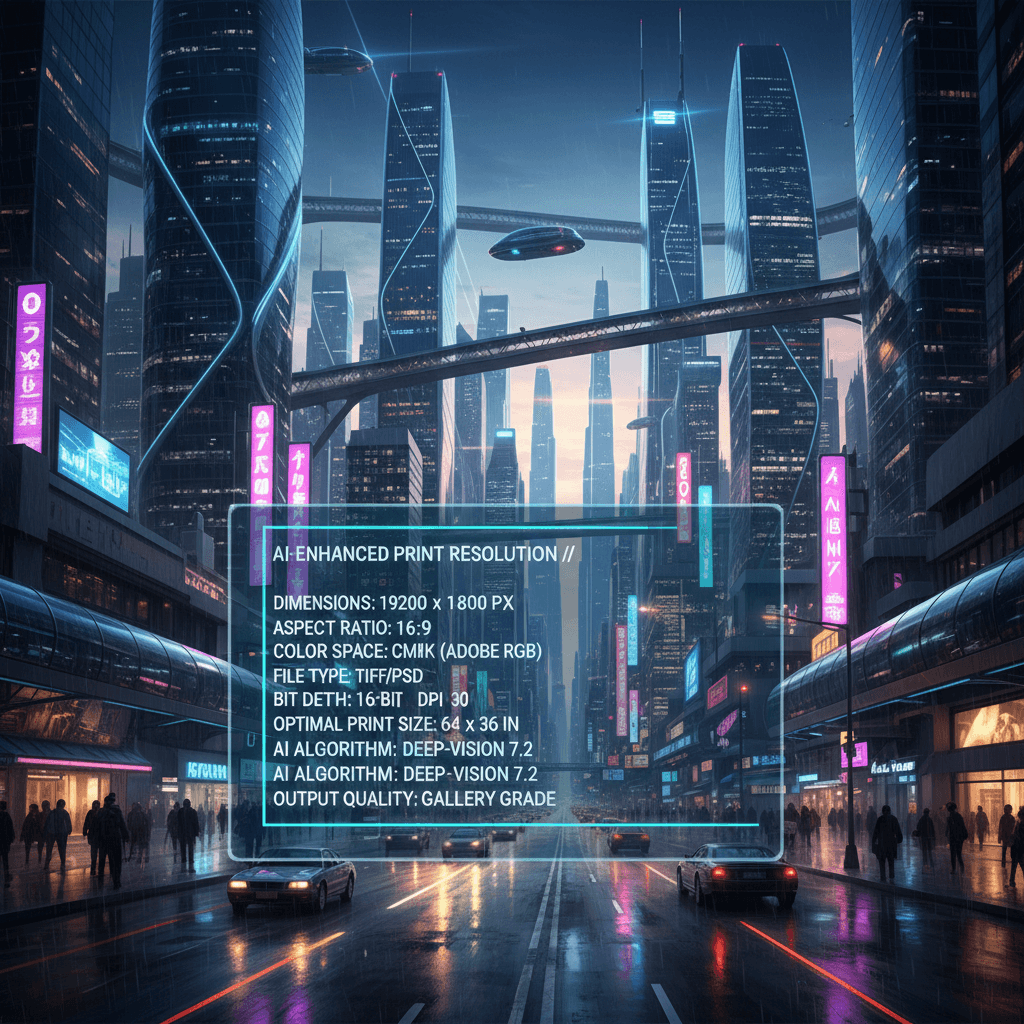
Most AI image editors output at 1MP or below — fine for web, unusable for print. Seedream v4.5 Edit renders natively at 4MP (2048×2048), which opens up real print applications: flyers, catalog pages, business cards, small-format posters, and editorial spreads. It is not a replacement for drum-scanned medium-format photography — but for everyday commercial print work, it changes the math dramatically.
TL;DR
- Seedream v4.5 Edit outputs 2048×2048 (4MP) natively — enough for prints up to 10×10 inches at 205 DPI
- Works great for flyers, business cards, catalog pages, and small-format marketing
- Not ideal for large-format posters, billboards, or ultra-high-end print
- Color management still happens in Photoshop after export
- 8 credits ($0.08) per edit, same as any other Seedream v4.5 run
Print DPI Quick Reference
The key number for print work is DPI (dots per inch). Higher DPI = sharper print at viewing distance. Industry standards:
- 300 DPI — high-quality print, used for magazines, catalogs, fine art
- 250 DPI — good quality print, used for most commercial work
- 200 DPI — acceptable for most marketing materials
- 150 DPI — minimum for readable print at arm's length
- 100 DPI — only for large-format work viewed from a distance
Seedream v4.5's 2048×2048 output maps to specific print sizes:
| Print size | DPI at 2048px | Quality | |-----------|--------------|---------| | 5×5 in | 410 | Excellent | | 6×6 in | 341 | Excellent | | 7×7 in | 292 | Excellent | | 8×8 in | 256 | Very good | | 10×10 in | 205 | Good | | 12×12 in | 171 | Acceptable | | 16×16 in | 128 | Only for viewing from 3+ feet | | 20×20 in | 102 | Poster only, distant viewing |
For any print size up to 10×10 inches, v4.5 output is production-ready.
When v4.5 Works for Print
- Flyers and leaflets (A5, A4). 4MP is more than enough for these formats.
- Business cards. Even at 300 DPI, 3.5×2 inches needs only 1050×600 pixels.
- Catalog pages. Product images in catalogs typically run 3–5 inches wide at 250 DPI.
- Direct mail postcards. 6×9 inch cards at 250 DPI need 1500×2250 pixels — fits.
- Small-format posters (up to 12×18). Works for casual posters viewed from a few feet away.
- Editorial spreads. Magazine-size images up to 8×10 are well within range.
When to Look Elsewhere
- Large-format posters (A1 and above). You need higher resolution than 4MP offers.
- Billboards. Dedicated large-format photography or illustration only.
- Fine art prints. Gallery-quality prints above 12×12 need true high-resolution sources.
- Full-bleed magazine covers. Editorial at this level demands drum-scanned originals.
For these cases, v4.5 can still produce concepts and layouts, but the final asset needs to be captured at higher resolution elsewhere.
Try Seedream v4.5 Edit — high-res AI editing
4MP output, up to 10 input images, $0.08 per edit. 50 free credits, no card.
Try Seedream v4.5 Edit FreePrompt Patterns for Print Work
Catalog Product Shot
Create a clean catalog product shot of the item from image 1 on
a warm cream background. Center the product, add subtle contact
shadow, preserve product color and texture exactly. Output at
2048x2048 in high detail suitable for print reproduction.
The "suitable for print reproduction" phrase nudges the model toward cleaner edges and less digital noise.
Print-Ready Hero Image
Create a hero image for a print flyer. Subject on the right third,
clean empty space on the left for headline text. Warm gradient
background. Preserve all details sharply. Output at 2048x2048.
Print Advertisement
Compose a print advertisement layout with the product on the left
and warm ambient background on the right. Add the text "SPRING
COLLECTION" in clean bold serif type at the top. Preserve product
details and colors exactly. Output at 2048x2048.
Color Management Workflow
Seedream v4.5 outputs PNG in sRGB color space. For print work you usually need to convert to CMYK or AdobeRGB. Workflow:
- Download the 4MP PNG from Seedream.
- Open in Photoshop.
- Edit > Convert to Profile to your target (typically CMYK Coated for print).
- Soft-proof with View > Proof Setup > CMYK to see how colors will render.
- Adjust if anything shifted during conversion.
- Save as TIFF or high-quality JPEG for your printer.
This Photoshop step is unavoidable for print work — no AI tool currently handles CMYK conversion directly. It adds 2–5 minutes per image to the workflow.
Start your next print project. Open Seedream v4.5 Edit.
Real Print Project: Local Business Flyer
A local coffee shop wants a grand opening flyer for mailers and storefront display. Requirements:
- A5 size (5.8×8.3 inches)
- Print at 250 DPI (needs ~1450×2075 pixels)
- Warm, inviting mood
- Hero image of a coffee cup plus brand colors
Workflow:
- Shoot or source a clean cup photo. (Source asset)
- Run v4.5 with a composite prompt:
Create a cafe hero image with the coffee cup from image 1 on a
warm wooden table, soft morning window light, steam rising subtly.
Apply warm editorial color grading. Leave clean space at the top
for headline text. Output at 2048x2048.
- Download the 4MP PNG.
- Open in Photoshop, convert to CMYK.
- Layout in InDesign with headline and body copy.
- Export print-ready PDF.
Total credits: 8. Total time: ~20 minutes. Print cost separately.
Validation Before Printing
Before sending files to a printer, validate:
- Resolution check. Image Size dialog in Photoshop — confirm PPI at target size.
- Color check. Soft-proof in target color space. Look for major shifts.
- Detail check. Zoom to 100% and confirm edges and textures look clean.
- Color bleed check. Confirm important details are not at the edge of the print area.
- Test print. For important jobs, print one copy locally before running the full batch.
Never skip validation. A bad print run is far more expensive than an extra 10 minutes of proofing.
4MP output for real print work
Flyers, catalogs, business cards — all at 8 credits per edit. 50 free to start.
Open Seedream v4.5 EditTips From Print Designers
- Always export at maximum quality. Use PNG or uncompressed TIFF for the print path.
- Pad important elements. Keep text and key details at least 0.25 inch from the edge of the print area.
- Test your printer's color profile. Good printers provide an ICC profile — soft-proof with it.
- Avoid pure black fills from AI. AI models sometimes produce rich black that prints muddy — check and adjust.
- Re-save for print. Do not hand the printer the raw PNG from Seedream; always process through Photoshop first.
Alternatives for Higher Resolution
If you need more than 4MP for print, options include:
- Dedicated upscalers. Tools like Topaz Gigapixel can 2x the Seedream output, getting you to 4096×4096 with some quality loss.
- Tiling approach. Generate multiple 4MP sections and stitch them in Photoshop.
- Traditional photography. For premium print jobs, still the best option.
- Larger Seedance models. Check Seedance's other tools for higher-res options in specific categories.
Further Reading
Get Started
Open Seedream v4.5 Edit, upload a source asset, and try the catalog prompt above. Export the 4MP PNG, open in Photoshop, convert to CMYK, and test print one copy. Your 50 free credits are enough to generate a full flyer's worth of assets before you pay anything. For pricing details see our pricing page.