How to Create High-Res AI Edits with Seedream v4.5
4MP (2048×2048) is the default output of Seedream v4.5 Edit. Learn how to get the cleanest possible high-resolution results, when it matters, and how to avoid common quality killers.
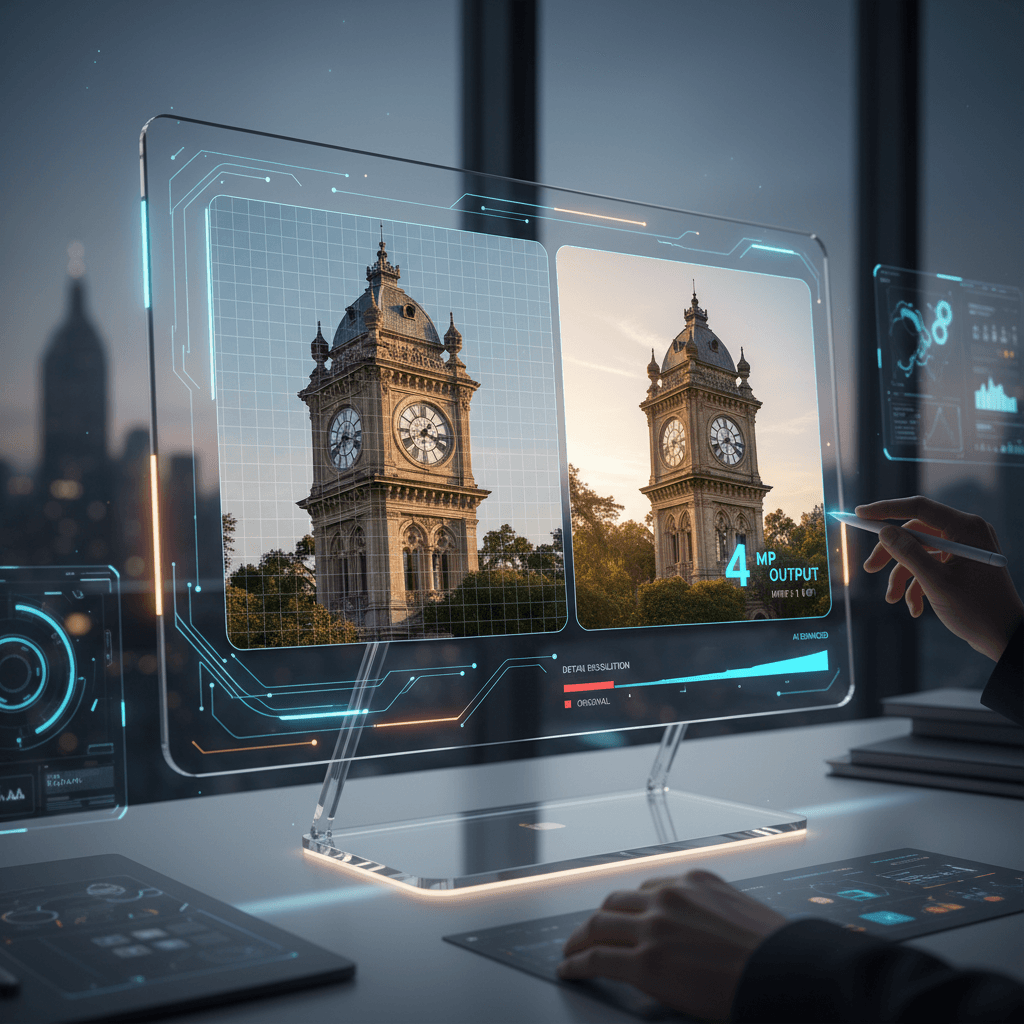
Most AI image editors upscale a smaller native render to "claim" higher resolution. Seedream v4.5 Edit actually generates at 4MP (2048×2048) from the start — no upsampling tricks, no artifact stretching. That matters for anyone shipping to print, paid social, or high-DPI screens. This tutorial explains how to get the cleanest possible high-res output and when the extra resolution pays off.
TL;DR
- Seedream v4.5 Edit outputs natively at 4MP (2048×2048)
- High-res prompts benefit from specific texture and detail instructions
- Source image quality matters more at 4MP than at 1MP — start with sharp inputs
- 8 credits ($0.08) per run regardless of output size
- 4MP is enough for 8×10 prints at 250 DPI and most hero images
Why 4MP Matters
A 1MP (1024×1024) image looks fine on Instagram, where it will be displayed at 400–600 pixels wide. It falls apart when:
- Printed on a flyer or catalog page
- Used as a website hero at full-bleed widths above 1400px
- Cropped for specific aspect ratios (losing usable pixels)
- Viewed on high-DPI laptop and tablet displays where 1MP looks soft
At 4MP, all of those use cases still hold up. You can crop in, you can print, you can display at large sizes without the "this is AI-upscaled" softness.
What Native 4MP Actually Means
Some models render at 512×512 or 1024×1024 and use an upscaling pass to get to "4MP." The result has a specific look — slightly plasticky textures, fabricated fine details, and occasional halos around edges.
Seedream v4.5 Edit generates the full 2048×2048 in one pass. Fine textures (fabric weave, wood grain, skin pores) are coherent from the start, not synthesized after the fact. When you zoom in, the details are real decisions the model made, not artifacts of a sharpening filter.
That difference is visible at 100% zoom and on print.
Try Seedream v4.5 Edit — high-res AI editing
4MP output, up to 10 input images, $0.08 per edit. 50 free credits, no card.
Try Seedream v4.5 Edit FreeGetting the Cleanest Possible 4MP Output
1. Start With High-Quality Inputs
Garbage in, garbage out applies doubly at 4MP. A grainy phone shot uploaded as a source will produce a grainy composite regardless of the model's skill. Before uploading:
- Use the largest version of the source you have (not a compressed web export)
- Avoid heavy JPEG compression
- If possible, start from a RAW conversion or a high-bitrate export
2. Prompt for Texture
At 4MP, textures matter. Prompts that name specific textures produce sharper results than generic prompts. Compare:
Vague: Replace the background with a wooden floor.
Specific: Replace the background with a warm oak hardwood floor with visible grain, subtle knots, and satin finish.
The second prompt gives the model texture targets to render at 4MP. Without them, the model defaults to generic surfaces that look flat when scaled.
3. Describe Light in Detail
Lighting drives the perceived sharpness of an image. Describe direction, color temperature, and quality:
Soft directional light from camera-left, warm afternoon temperature,
with subtle highlights on metal surfaces and soft shadows that fall
to camera-right. Preserve the original shadow direction.
4. Protect Critical Details
At 4MP the model has more pixels to play with, which sometimes means it "helps" by re-rendering details you wanted preserved. Add explicit preservation clauses:
Preserve the subject's face, hair, skin texture, and clothing
exactly. Do not alter eye shape, skin tone, or fine fabric details.
When 4MP Matters vs When It Does Not
4MP matters when:
- Printing on paper above 5×7 inches
- Displaying as a hero image above 1400px wide
- Cropping in for detail shots
- Running paid media in formats that upscale (YouTube thumbnails, connected TV, etc.)
- Viewing on Retina / high-DPI screens
4MP is overkill when:
- Posting to Instagram (will compress to ~1080px anyway)
- Thumbnails for a blog post
- Internal moodboard references
- Quick iteration rounds before locking a concept
You still pay 8 credits either way, so there is no savings in skipping 4MP — but if you are doing 100 iterations to lock a concept, faster models like v4.0 Edit at $0.03 may be appropriate for the exploration phase.

Ship print-ready edits today. Open Seedream v4.5 Edit.
Common Quality Killers
Killer 1: Low-Resolution Source
If your input is 800×600, the model still outputs 2048×2048, but the upscaling pressure is high and fine details will be synthesized rather than matched. Fix: always upload the highest resolution source you have.
Killer 2: Over-Compressed JPEGs
A 200KB JPEG of a detailed scene is packed with compression artifacts. At 4MP, those artifacts get amplified. Fix: use PNG or high-bitrate JPEG sources.
Killer 3: Vague Prompts
"Make it look nice" gives the model nothing to render at high fidelity. Fix: specify textures, lighting, and materials explicitly.
Killer 4: Too Many Contradictions
If your prompt says "preserve everything exactly" and "make major changes to lighting and background," the model has to pick — and sometimes picks wrong. Fix: be clear about what to change and what to protect.
Killer 5: Wrong Model for the Job
If your scene involves complex physics (glass, water reflections, fabric drape), v4.5 may struggle. Fix: escalate to Seedream 5.0 Edit for those edge cases. See our comparison post.
Native 4MP, no upscaling
Print-ready AI edits at 8 credits each. 50 free credits on signup.
Open Seedream v4.5 EditPrint Size Guide
If you know what print size you need, here is how 4MP (2048×2048) maps:
| Print size | DPI | Works? | |-----------|-----|--------| | 5×5 inches | 410 | Yes, excellent | | 8×8 inches | 256 | Yes, very good | | 10×10 inches | 205 | Yes, good | | 16×16 inches | 128 | Acceptable for wall art viewed from 3+ feet | | 24×24 inches | 85 | Only for posters viewed from a distance |
For print above 10×10 inches at close viewing distance, consider tiling multiple edits or pairing with Photoshop upscaling.
The Workflow That Works
- Shoot or source a sharp, high-resolution input.
- Write a specific prompt with textures, lighting, and preservation clauses.
- Run the edit. 30–60 seconds, 8 credits.
- Review at 100% zoom. Check for texture coherence and edge quality.
- Iterate if needed. Usually 1–2 rounds of prompt refinement lock it.
- Export the 4MP PNG. Ship it.
This is the pattern professional designers use for client work on Seedance. It consistently produces results that hold up to close scrutiny.
Next Reading
Once you are comfortable with high-res edits, look into:
- Seedream v4.5 Edit for Print — deeper print workflow
- Seedream v4.5 Edit for Product Photography — commercial use cases
- The complete v4.5 Edit guide — model overview
When you are ready to run your first high-res edit, open /create/seedream-v4-5-edit. Your 50 free credits are enough to ship six print-ready images before you pay a cent.