Seedream v4.5 Edit vs Photoshop AI: Automated Editing Compared
Adobe Photoshop's Generative Fill meets Seedream v4.5 Edit. We compare resolution, speed, cost, multi-image workflows, and where each tool earns its keep in a production pipeline.
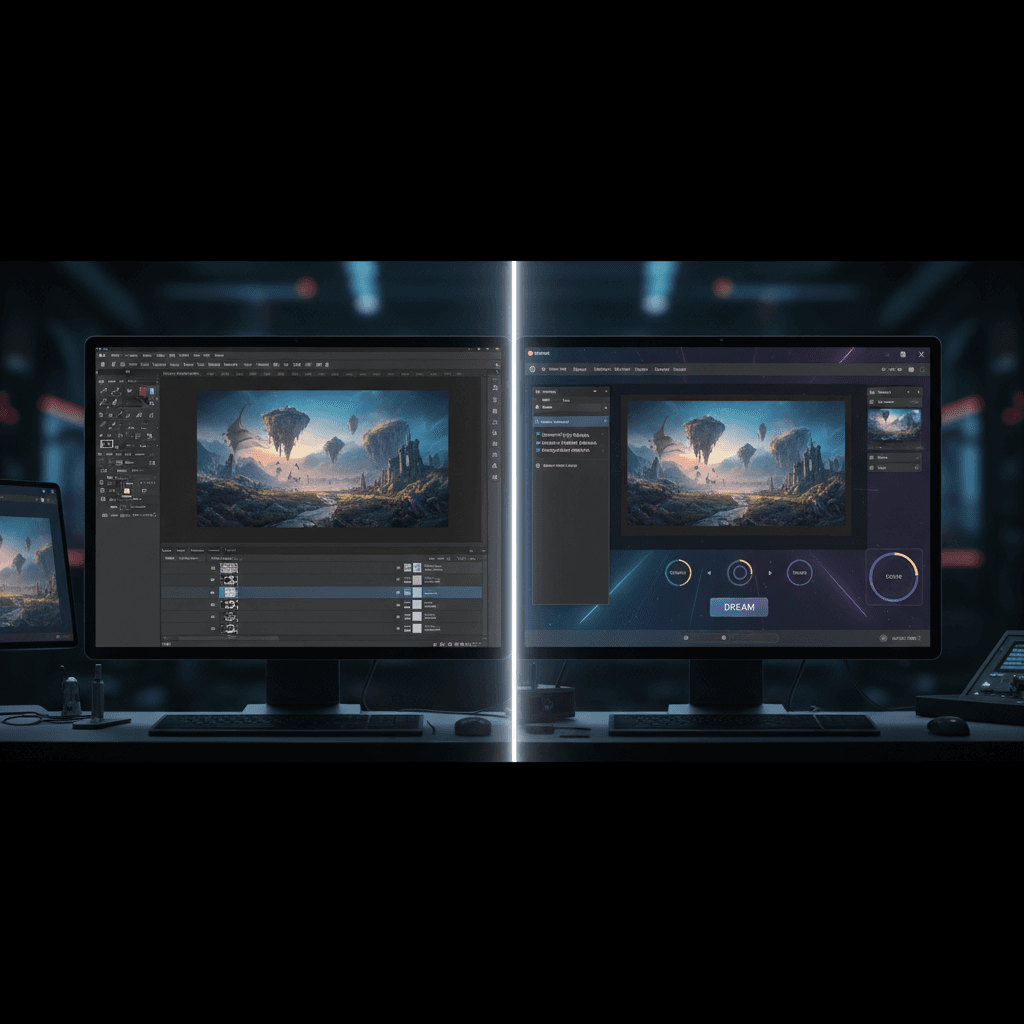
Photoshop has been the default image editor for three decades. Adobe bolted generative AI onto it with Generative Fill and Firefly in 2023. Since then, a wave of native AI editors — Seedream v4.5 Edit among them — have taken a different approach: instruction-first, multi-image aware, and priced per output instead of per seat. So which one should a working designer actually pick?
TL;DR
- Photoshop AI is gated behind a $22.99/mo Creative Cloud seat; Seedream v4.5 Edit is $0.08 per image
- Seedream v4.5 outputs 4MP natively; Photoshop AI fills caps at ~1024×1024 per region
- Photoshop wins for pixel-level manual control; v4.5 wins for whole-scene instruction edits
- Seedream accepts up to 10 reference images in one prompt — Photoshop does not
- Most production teams end up using both for different parts of the pipeline
The Two Tools in One Sentence Each
Photoshop AI is a suite of generative features (Generative Fill, Generative Expand, Remove Tool) bolted onto the classic pixel editor. You still open a PSD, select a region, type a prompt, and see the fill composited into your document.
Seedream v4.5 Edit is an instruction-driven editor that takes your source image(s) and a natural-language change request, then returns a fresh 4MP render. No layers, no selections, no masks.
They feel different because they solve different halves of the same problem.
Head-to-Head Comparison
| Feature | Seedream v4.5 Edit | Photoshop AI (Generative Fill) | |---------|-------------------|-------------------------------| | Pricing model | $0.08 per image | $22.99/mo Creative Cloud + credits | | Base resolution | 4MP (2048×2048) native | Limited to ~1024px per fill region | | Input images | Up to 10 references | 1 document, external refs via upload | | Speed | 30–60 seconds | 5–15 seconds per fill | | Instruction following | Whole-scene prompts | Region-level prompts | | Manual layer control | No | Yes — full PSD workflow | | Learning curve | Minutes | Weeks | | Best for | Fast high-res edits, composites | Precise retouching, layered work |
Where Photoshop AI Still Wins
Photoshop is 30+ years of pixel-level tooling. Generative Fill plugs into that.
- Fine retouching. Healing Brush, Clone Stamp, curves, dodge/burn — none of that has an AI replacement yet.
- Layered design files. PSDs with 40 layers, smart objects, and masks are still Photoshop's native home.
- Precise region control. You can select a 20×20 pixel area and fill only that.
- Color management. ICC profiles, soft-proofing, CMYK export — essential for print teams.
If you already live in Photoshop and need to fix a distracting object or extend a canvas, Generative Fill is the fastest path.
Try Seedream v4.5 Edit — high-res AI editing
4MP output, up to 10 input images, $0.08 per edit. 50 free credits, no card.
Try Seedream v4.5 Edit FreeWhere Seedream v4.5 Edit Pulls Ahead
The model was trained for whole-scene reasoning, which makes a handful of tasks dramatically faster:
Multi-Image Composition
Seedream v4.5 accepts up to 10 reference images in a single request. You can hand it a product shot, a lifestyle backdrop, and three style references — then ask for a composite in one prompt. In Photoshop, that same job means opening each file, cutting subjects out, matching lighting manually, and managing layer blending modes.
Native 4MP Output
Generative Fill regions top out around 1024 pixels. If you need a full 2048×2048 hero image, you have to stitch or upscale. Seedream v4.5 renders at 4MP end-to-end — no seams, no upscaling artifacts.
Instruction Following Across the Whole Image
Tell v4.5 "change the jacket from navy to orange, keep everything else identical," and it reasons about the whole scene. In Photoshop, you select the jacket region first — which means you do the attention work the model would otherwise handle.
Price Per Output, Not Per Seat
Photoshop costs $22.99/month whether you generate 2 edits or 200. Seedream is $0.08 per edit with no monthly fee. Light users save substantially; the break-even is roughly 290 edits per month.
A Sample Workflow: Product Hero Image
Say you need a clean hero shot of a new headphone product on a wood desk with a warm afternoon light mood.
Photoshop path:
- Shoot or source the headphone photo.
- Source the wood desk photo.
- Cut out the headphone with the Object Selection tool.
- Paste onto the desk.
- Match lighting manually with adjustment layers.
- Paint shadows on a new layer.
- Run a Camera Raw filter for the mood grade.
Maybe 25–40 minutes for a skilled retoucher.
Seedream v4.5 path:
Composite the headphones from image 1 onto the wooden desk surface
from image 2. Match the warm afternoon lighting direction from the
desk photo. Add a soft cast shadow beneath the headphones.
Output a clean product hero at 2048x2048.
Upload both images, run the prompt, wait ~50 seconds, download. 8 credits.

Ready to skip the layer juggling? Open Seedream v4.5 Edit.
Cost Math for a Small Team
Assume a three-person design team producing 150 images per month.
Photoshop AI route:
- 3 Creative Cloud seats × $22.99 = $68.97/month
- Generative Credits included, but capped
Seedream v4.5 route:
- 150 edits × 8 credits = 1,200 credits
- Closest tier: $25 popular pack (2,750 credits)
- Cost: $25/month, plus leftover credits for next month
Seedream is cheaper by ~$44/month for this team and leaves budget for experimentation. For teams that also need pixel-level retouching, the pragmatic answer is one Photoshop seat plus Seedream for generation.
When to Use Each Tool
Reach for Photoshop AI when:
- You are already in a layered design file
- You need precise masking or region-level control
- You are prepping files for CMYK print with strict color profiles
- Your edit is a small fix rather than a full composite
Reach for Seedream v4.5 Edit when:
- You are composing from multiple reference images
- You need 4MP native output in under a minute
- You care about cost per output, not seats
- Your edit is whole-scene in nature (background swap, style transfer, product replacement)
Skip the learning curve — edit with words
Instruction-driven editing at 4MP. 8 credits per run, 50 free to start.
Try Seedream v4.5 Edit FreeThe Hybrid Workflow Most Teams End Up With
The honest answer is: use both. Seedream v4.5 for generation and composition, Photoshop for the final 10% of retouching and print prep. Export from Seedream at 4MP, pull into Photoshop for any micro-adjustments, then ship.
This pattern saves hours per week versus the "Photoshop only" era and skips the quality ceiling of "AI editor only." For more on where Seedream v4.5 fits in broader workflows, read our complete guide and the product photography walkthrough.
Verdict
If you have never used Photoshop and want AI-first editing: Seedream v4.5 Edit, without question. The learning curve is minutes and the output is 4MP.
If you are a working designer embedded in Creative Cloud: add Seedream v4.5 to your stack for composition and bulk generation, keep Photoshop for retouching. The combined cost is still less than a full team of Creative Cloud seats, and the throughput is dramatically higher.
Try v4.5 with your 50 free credits at /create/seedream-v4-5-edit and see how much of your workflow it absorbs.