How to Fix Bad Photos with Seedream v4.0 Edit
Blurry, dark, cluttered, or badly composed? Seedream v4.0 Edit rescues bad photos for $0.06 each. A practical guide to fixing common photo problems with AI.
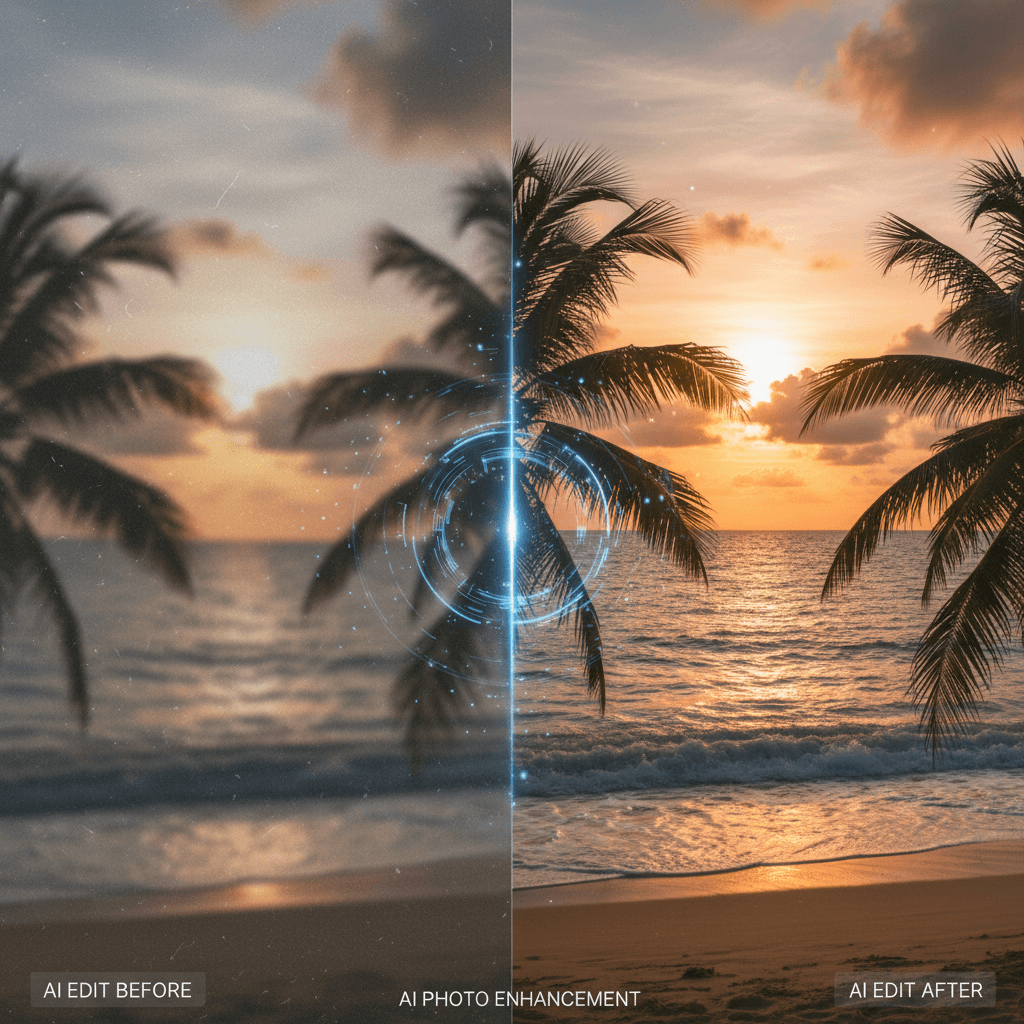
Everybody has a folder full of photos that are almost-but-not-quite usable. Blurry backgrounds, cluttered frames, awkward lighting, that photobomber. Seedream v4.0 Edit fixes most of them in 30 seconds for 6 cents. This is a practical guide to rescuing the photos you already have.
TL;DR
- Fix lighting, backgrounds, clutter, colors, and composition with plain English
- $0.06 per fix — cheapest rescue tool in the Seedream family
- Works on phone photos, old scans, and DSLR shots
- 20-40 seconds per edit
- Try 8 free fixes at seedance.it.com
What Counts as a "Bad" Photo?
For our purposes, a bad photo is one you'd delete. Something happened — bad lighting, clutter, a stranger walked in, the color was off — and the shot feels unusable. Most of these aren't technically ruined. They just need the right edit.
Seedream v4.0 Edit handles a specific set of "bad photo" problems very well:
- Cluttered or distracting backgrounds
- Photobombers and strangers in frame
- Bad sky or weather
- Flat or dull lighting
- Wrong colors on objects
- Dated or off-brand aesthetics
It doesn't fix:
- Severe motion blur (the subject is just too blurry)
- Heavily pixelated or tiny source images
- Out-of-focus faces that need sharpening
For that, you'd need dedicated upscaling tools or a reshoot.
Try Seedream v4.0 Edit — budget AI image editing
The cheapest AI image editor at just $0.06 per edit. 50 free credits, no card needed.
Try Seedream v4.0 Edit FreeFix 1: The Cluttered Background
The problem: Your portrait has laundry on a chair behind the subject.
The fix:
"Replace the background with a clean studio backdrop"
Or for a softer look:
"Blur the background heavily to remove distractions"
Cost: $0.06. Time: 30 seconds.
Fix 2: The Photobomber
The problem: A stranger walked into your group photo.
The fix:
"Remove the person in the background on the left side"
Be specific about location — "left side," "right side," "background," "middle." Vague placement prompts cause weird removals.
Fix 3: Bad Sky
The problem: You shot an amazing landscape but the sky was a dull flat gray.
The fix:
"Replace the sky with a dramatic golden hour sunset"
Or:
"Replace the sky with soft cotton clouds and a clear blue"
The model matches the new sky's lighting to the rest of the scene automatically.
Fix 4: Flat Lighting
The problem: Indoor photo with no dramatic light — everything looks gray.
The fix:
"Add warm window light from the left side and soft shadows"
Or:
"Boost contrast and add golden hour tones"
Runs in 30 seconds. Often the difference between a flat shot and a professional-looking one.
Fix 5: Wrong Object Color
The problem: The red shirt looks orange in the photo.
The fix:
"Change the shirt to a true deep red"
The model preserves the subject and swaps only the color. Useful for ecommerce or listing photos where accurate color matters.
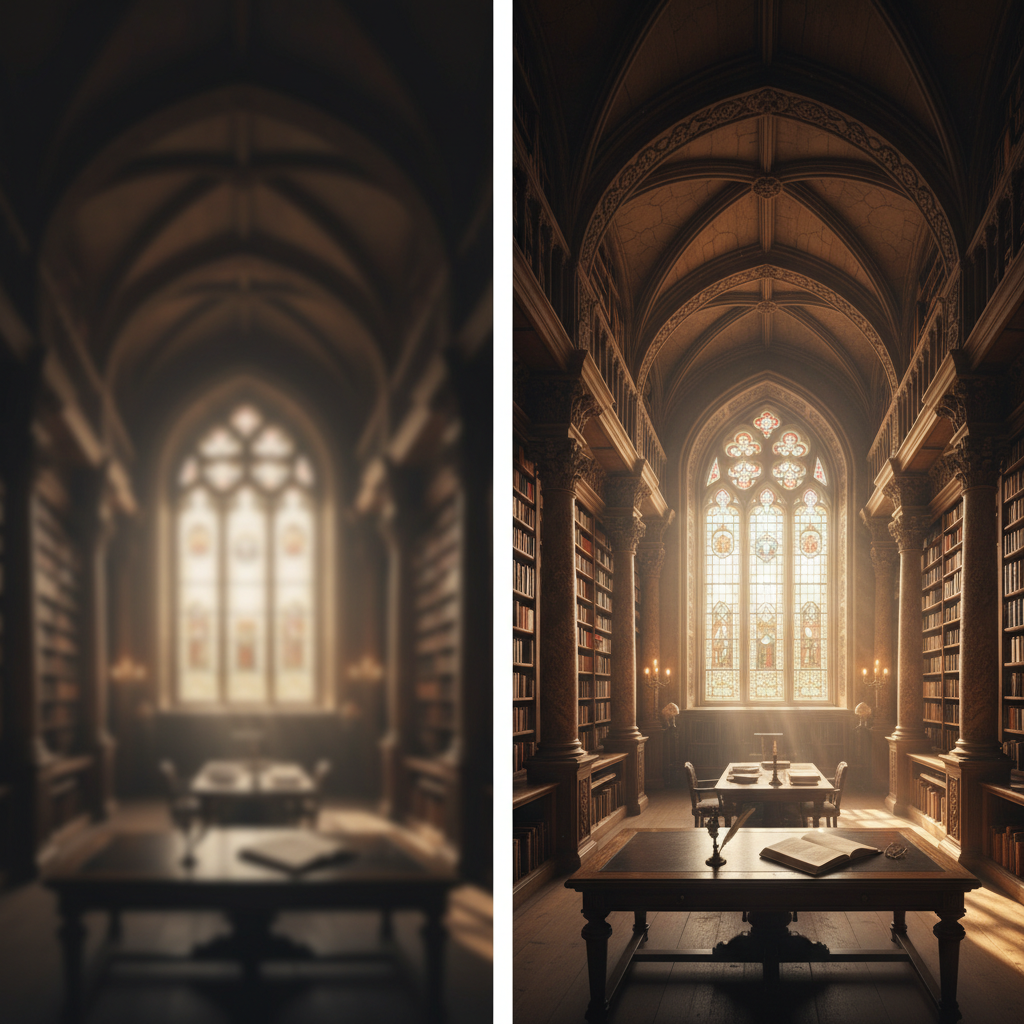
Rescue your photo folder. Open Seedream v4.0 Edit and fix your first bad photo.
Fix 6: The Distracting Sign
The problem: There's a street sign or a random logo in your otherwise-good shot.
The fix:
"Remove the street sign in the background"
Or:
"Remove all visible text and logos from the scene"
Fix 7: Off-Brand Aesthetic
The problem: The photo is fine but doesn't match your blog or brand style.
The fix:
"Apply a warm film photo aesthetic with soft grain"
Or:
"Turn this into a clean editorial style"
Style transfer restyles the whole image without losing the subject.
Fix 8: Weather You Didn't Want
The problem: You shot outdoors but the weather was cloudy and gray.
The fix:
"Change the weather to bright sunny afternoon"
Or:
"Turn this into a snowy winter scene"
Weather edits are one of the model's strongest skills.
Fix 9: Ugly Floor or Surface
The problem: Your product shot is great but the floor is scuffed.
The fix:
"Replace the floor with clean polished wood"
Fix 10: Bad Framing
The problem: Subject is off to one side with an empty wall on the other.
The fix:
"Replace the empty wall with a window showing a garden"
Fill negative space with relevant context.
Rescue Workflow: 10 Photos in 10 Minutes
Here's a real process for clearing out your "almost unusable" folder.
Step 1: Pick 10 photos you almost deleted.
Step 2: For each, identify the main problem in one sentence. "Cluttered background." "Bad sky." "Photobomber." "Dull lighting."
Step 3: Open Seedream v4.0 Edit. Upload each photo one at a time, type a prompt matching the problem, generate, download.
Step 4: 10 photos × 30 seconds + overhead = about 10 minutes.
Total cost: $0.60 (10 × $0.06). Ten salvaged photos that you would have otherwise trashed.
Salvage 8 photos for free
50 free credits = 8 rescue edits on the house. No credit card required.
Fix My PhotosTips for Better Fix Prompts
- Describe the fix, not the problem. Say "add warm sunset light" not "the lighting is bad."
- Be specific about location. "Left side," "background," "behind the subject."
- Use single-issue prompts. One fix per generation, not multiple chained fixes.
- Iterate cheaply. If the first try isn't right, rephrase and regenerate. Two tries = $0.12.
What About Extremely Bad Photos?
If the source photo is truly ruined — wildly blurry, tiny resolution, faces unrecognizable — no AI tool fixes it. Seedream v4.0 Edit needs something workable to build from.
For those cases, either reshoot or accept the loss. For everything else, v4.0 Edit is the cheapest and fastest rescue you can buy.
Related Reading
- Seedream v4.0 Edit complete guide
- Seedream v4.0 Edit for beginners
- Quick object removal with Seedream v4.0
Final Word
Your photo library is full of almost-great shots. Seedream v4.0 Edit turns them into great shots for the price of a gumball. Open the tool, grab your worst-salvageable photo, type a fix, and see what the model does. That's the fastest way to understand what it's really good at.