How to Change Image Backgrounds with Seedream 5.0 Edit
Step-by-step tutorial on using Seedream 5.0 Edit to change, remove, and replace image backgrounds with AI. Perfect for product photos, portraits, and social media content.
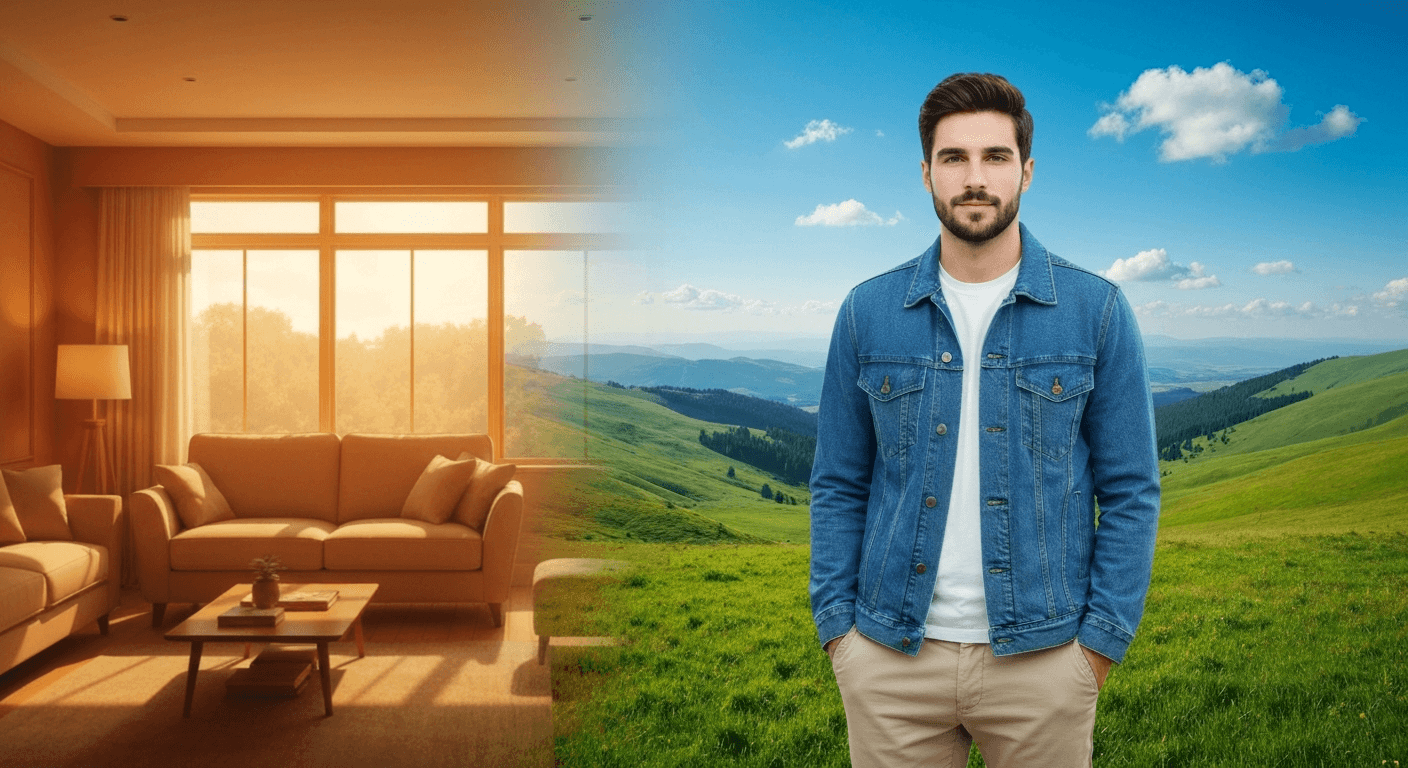
Changing a background used to mean 10 minutes of masking, hair refinement, and shadow compositing. Seedream 5.0 Edit replaces that whole workflow with a single sentence. Type what background you want. Get it back in under 15 seconds. $0.07 per swap.
TL;DR
- Replace backgrounds with natural-language prompts — no masks, no selections
- 7 credits ($0.07) per edit, 5–15 second generation
- Handles lighting, shadows, and edges automatically
- Works for products, portraits, real estate, and social content
- 50 free credits = 7 free background swaps at seedance.it.com
Why This Matters
A typical product photography workflow: shoot the product, import to Photoshop, select the subject, refine the mask, paint out edge halos, add new background, match lighting, blend shadows. Total time: 8–15 minutes per image.
With Seedream 5.0 Edit:
"Replace the background with a clean white studio seamless"
Total time: 10 seconds. Cost: $0.07. Multiply that across 50 product photos and you've saved roughly 10 hours of editing time for under $4.
Edit your first photo with AI
No Photoshop skills needed. Just type what you want changed. $0.07 per edit.
Try Seedream 5.0 Edit FreeStep 1: Upload Your Image
Head to Seedream 5.0 Edit and drop your image in. Works with:
- JPEG, PNG, WebP
- Any subject — people, products, pets, buildings, food
- Best at 1024x1024 or higher for clean edge detection
Step 2: Write a Specific Background Prompt
The quality of your background is directly tied to how you describe it. Use this formula:
[Environment/location] + [lighting/time of day] + [style or texture]
Studio Backgrounds
"Replace with seamless white studio backdrop, soft even lighting"
"Change background to neutral gray studio seamless, professional product photography"
"Swap to black studio background with subtle side lighting"
"Replace background with warm beige canvas studio backdrop"
Outdoor Backgrounds
"Replace with a blurred autumn forest in warm afternoon light"
"Swap to a sandy beach with turquoise ocean at golden hour"
"Change background to a snowy mountain landscape at dawn"
"Put subject in front of a wheat field at sunset"
Urban Backgrounds
"Replace with blurred Tokyo street at night, neon lights"
"Change to a modern office interior with large windows"
"Swap background to a brick alleyway with warm tungsten light"
"Put subject in front of a minimalist concrete wall"
Lifestyle Backgrounds
"Change background to a cozy Scandinavian living room"
"Replace with a marble kitchen counter in soft morning light"
"Swap to a garden cafe with dappled sunlight"
"Put subject in a sunlit artist's studio"
Step 3: Match the Lighting (The Pro Move)
The #1 tell of a fake background composite is mismatched lighting. Seedream 5.0 Edit handles this automatically — but you can guide it with specifics:
"Replace background with sunset beach AND adjust subject lighting to warm golden-hour glow"
"Change background to studio white AND relight subject with soft key light from the left"
Adding the lighting instruction in the same prompt makes the composite feel native, not pasted.
Step 4: Handle Tricky Subjects
Some subjects trip up traditional masking tools. Seedream 5.0 Edit handles them natively:
| Tricky subject | Prompt addition | |---|---| | Fine hair / fur | "preserve hair detail at edges" | | Transparent objects (glass) | "keep glass transparency and refractions" | | Fluffy/wispy edges | "maintain soft edge detail" | | Motion blur | "preserve motion blur on subject" | | Complex outlines | (no change needed — handled automatically) |
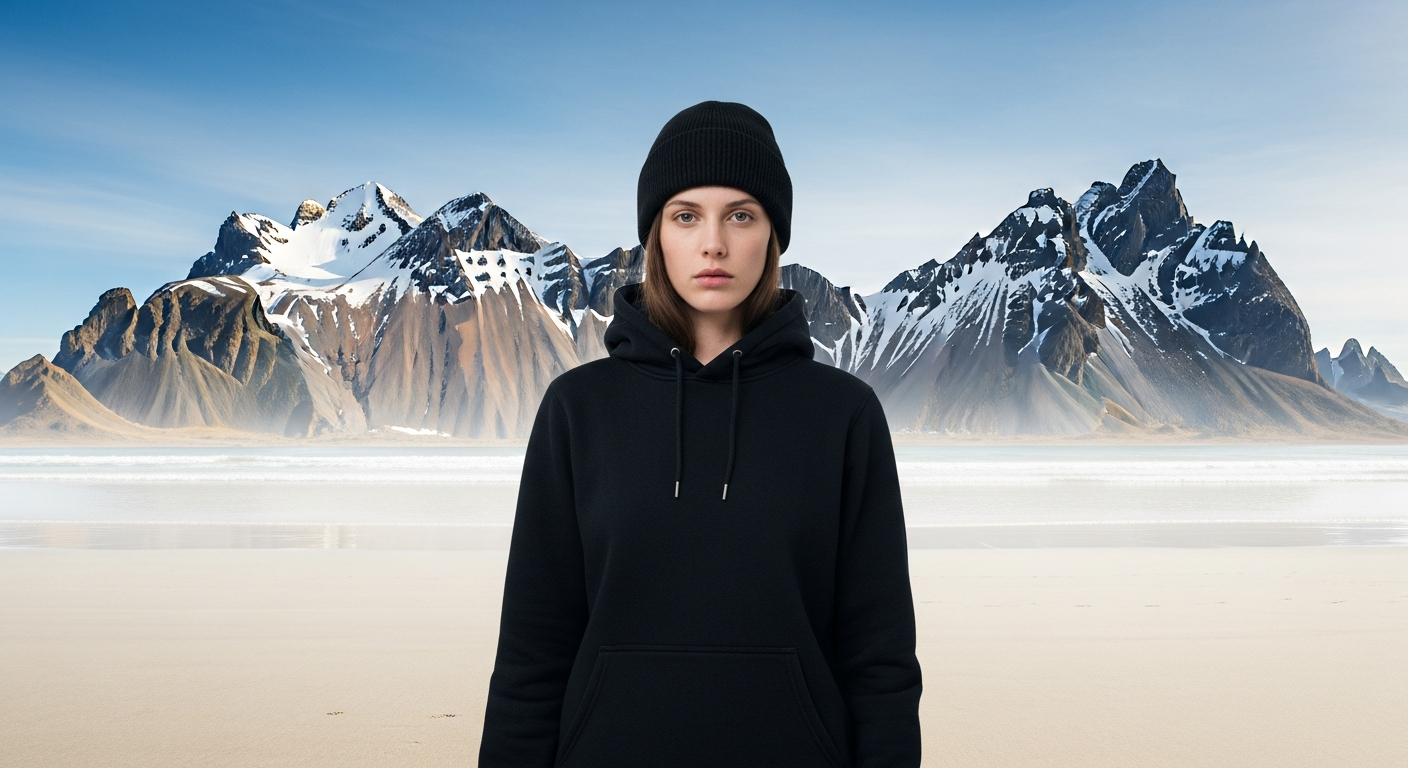
Want results like this? Try Seedream 5.0 Edit free →
Use Case Walkthroughs
E-Commerce Product Photo
Starting image: Phone photo of a product on a cluttered desk.
"Replace the background with a seamless pure white studio backdrop, add subtle soft shadow beneath the product, keep product color and texture intact"
Result in 10 seconds: Amazon-ready product photo. Compare to paying a studio $25–$100 per product.
LinkedIn Headshot
Starting image: Selfie with a distracting background.
"Replace background with a blurred modern office interior, professional lighting, keep facial features and expression unchanged"
Result: Corporate-ready profile photo for $0.07.
Real Estate Exterior
Starting image: House photo on an overcast day.
"Replace the gray sky with a dramatic blue sky with scattered white clouds, warm golden-hour light on the house"
Result: Listing-ready exterior shot. See the full virtual staging guide.
Social Media Portrait
Starting image: Casual photo at home.
"Replace background with a dreamy sunset beach, golden light, preserve subject lighting to match warm tones"
Result: Instagram-ready travel-vibe post without the travel.
Advanced Techniques
Multi-Pass Refinement
Sometimes one pass gets you 90% there. Run another to polish:
Pass 1: "Replace background with white studio seamless" — 7 credits
Pass 2: "Add soft gray shadow under the subject, left side" — 7 credits
Pass 3: "Subtle warm tone boost on the overall image" — 7 credits
Total: 21 credits = $0.21 for a gallery-quality final.
Skip the masking. Just describe it.
Hair, transparent glass, motion blur — the model handles every tricky edge. Type the background you want. Done in 10 seconds.
Swap Your First Background FreeConsistent Backgrounds Across a Set
Editing 30 product photos? Use the same prompt on each. The model produces consistent backgrounds across a batch — critical for e-commerce catalogs. For scripted batch workflows, see the API guide.
Background Blur Only
Don't want a full swap? Just change the focus:
"Blur the background to smooth bokeh, keep subject sharp"
"Add shallow depth-of-field effect, background soft"
Common Mistakes
| Mistake | Fix | |---|---| | Vague prompt ("new background") | Describe the specific environment | | No lighting mention | Add time of day or light direction | | Subject color shifts | Add "preserve subject colors" | | Unnatural edges | Add "seamless blend with subject" | | Wrong subject edited | Specify "the person in red" etc. |
Cost Comparison
| Method | Time | Cost | |---|---|---| | Seedream 5.0 Edit | 10 sec | $0.07 | | Fiverr background removal | 1–3 days | $5–$25 | | Photoshop manual edit | 10–15 min | (your hourly rate) | | Professional studio shoot | Hours | $100–$500+ |
For 100 images a month, Seedream 5.0 Edit costs $7 total — less than a single Fiverr gig.
Pricing
| Pack | Credits | Price | Edits | |---|---|---|---| | Starter | 1,050 | $10 | ~150 | | Popular | 2,750 | $25 | ~390 | | Pro | 5,750 | $50 | ~820 | | Max | 12,000 | $100 | ~1,710 |
Credits never expire. Full pricing.
Next Steps
- Product photography workflow
- Portrait retouching
- Virtual staging for real estate
- Complete editing tutorial
Swap your first background for free → — 50 credits on signup.