AI Background Replacement with Seedream v4.5 Edit
Swap backgrounds in seconds without masking, selecting, or feathering. Seedream v4.5 Edit handles background replacement with whole-scene reasoning at 4MP.
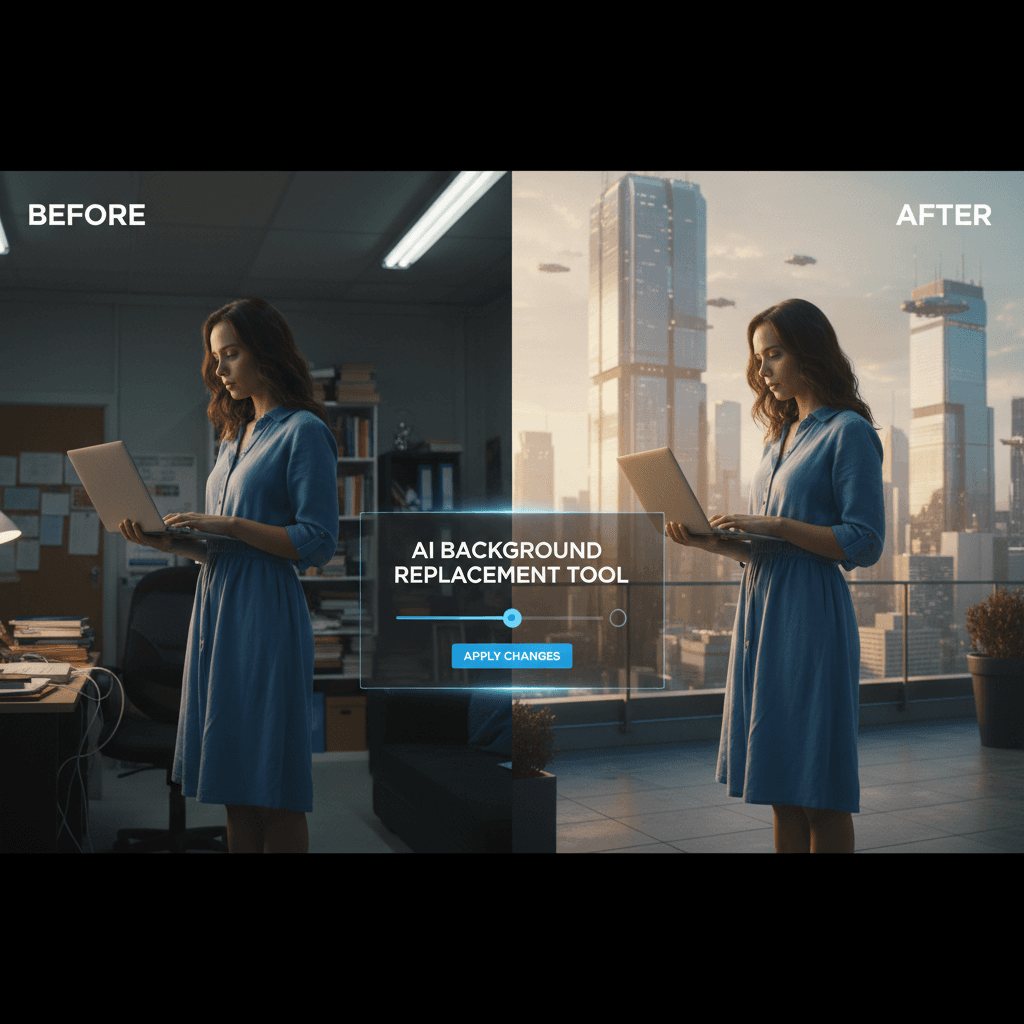
Background replacement used to be the single most time-consuming task in photo editing. Select the subject, refine the edges, mask out the background, paste in a new one, match lighting, fix shadows — thirty minutes per image if you were fast. Seedream v4.5 Edit does the same job in about 45 seconds with a single prompt, and the output is 4MP. No masking, no feathering, no layer juggling. This tutorial shows you exactly how.
TL;DR
- Replace backgrounds with a single prompt — no masking required
- Seedream v4.5 Edit handles subject preservation automatically
- 4MP (2048×2048) output at 8 credits per edit
- Works for product shots, portraits, real estate, and fashion
- Use a reference image for the new background when you need precise control
Why AI Background Replacement Is Different
Traditional background replacement is a selection problem. You select the subject, invert the selection, delete the background, drop a new one in. Every step can go wrong — bad edges, missed hair strands, mismatched lighting.
AI background replacement reframes it as a description problem. Tell the model what the new background should be and what to preserve about the subject. The model handles edges, lighting matching, and shadow rendering automatically.
In practice this means:
- No selection tools. You do not draw anything.
- Edges handled automatically. Hair, fur, transparent edges all work.
- Lighting matched automatically. No manual adjustment layers.
- Shadows rendered contextually. The model figures out where shadows should fall.
It is not perfect every time, but it is good enough that background replacement has gone from a 30-minute task to a 45-second task.
Basic Background Replacement Prompt
Replace the background behind the subject with [NEW BACKGROUND
DESCRIPTION]. Preserve the subject's pose, clothing, face, and
hair exactly. Match the existing subject lighting. Add a subtle
cast shadow appropriate to the new scene. Output at 2048x2048.
Fill in the new background description and you have a working prompt.
Try Seedream v4.5 Edit — high-res AI editing
4MP output, up to 10 input images, $0.08 per edit. 50 free credits, no card.
Try Seedream v4.5 Edit FreeCommon Background Replacement Scenarios
1. Product Shot: White Sweep to Marble
Replace the white studio background with a polished white marble
surface with soft gray veining. Preserve the product's position,
color, and lighting exactly. Add a subtle contact shadow beneath
the product. Output at 2048x2048.
2. Portrait: Busy Scene to Clean Cyclorama
Replace the busy outdoor background with a clean studio cyclorama
in soft gray. Preserve the subject's pose, expression, hair, and
clothing exactly. Maintain the existing directional lighting on
the face. Output at 2048x2048.
3. Fashion: Studio to Location
Replace the gray studio background with a minimalist architectural
interior — concrete floor, white walls, large window with soft
daylight coming from camera-left. Preserve the model's pose, outfit,
and facial expression exactly. Match the new window light direction.
Output at 2048x2048.
4. Using a Reference Image
Replace the background in image 1 with the scene shown in image 2.
Preserve the subject in image 1 — pose, clothing, face, and hair —
exactly. Match the lighting direction and color temperature from
image 2. Add a realistic cast shadow. Output at 2048x2048.
This is the pattern when you need a specific background and want to hand the model a visual reference instead of describing it in words.
The Lighting Match Problem
The most common failure mode in background replacement is mismatched lighting. Your subject was shot under cool studio light, you paste them onto a warm sunset beach, and the composite screams "fake."
Two fixes:
Fix 1: Match Subject Lighting to New Background
Replace the background with a warm sunset beach. Adjust the subject's
lighting to match the sunset — warm directional light from camera-right,
soft golden tones on skin and clothing. Preserve the subject's pose,
face, and clothing structure. Output at 2048x2048.
Telling the model to "adjust subject lighting" gives it permission to subtly re-light the subject, which is what you want for believable composites.
Fix 2: Pick Backgrounds with Compatible Lighting
If you do not want the subject re-lit, pick backgrounds with similar lighting to the original shoot. Studio subject? Use studio-like backgrounds (white rooms, soft ambient scenes). Outdoor subject? Use outdoor backgrounds with similar light direction.
Hair and Edge Handling
Hair is the traditional nightmare of background replacement. Flyaway strands, transparent edges, backlight halos — manual selection tools struggle with all of it.
Seedream v4.5 Edit handles hair edges automatically because it is not selecting and cutting — it is rendering a new image. The output is a coherent photo where hair exists naturally against the new background.
This is a quiet superpower. Photographers and portrait retouchers who have spent years mastering masking techniques can now skip that step entirely.

Replace your first background now. Open Seedream v4.5 Edit.
When to Preserve vs Re-Light
A decision you will face constantly:
Preserve original lighting when:
- The subject lighting is already beautiful and on-brand
- The new background has similar light direction
- You need exact color accuracy on the subject (e.g., product colors)
Allow re-lighting when:
- The new background has dramatically different light
- You want a cohesive composite that feels shot on location
- The original subject lighting is flat or uninspired
State your choice explicitly in the prompt. "Preserve the subject's lighting exactly" or "adjust the subject's lighting to match the new background."
Troubleshooting Common Issues
Subject looks pasted onto the background. Fix: Add "match the lighting direction and color temperature from the new background" and "add a realistic cast shadow consistent with the scene."
Lost hair details at the edges. Fix: Usually not an issue in v4.5. If it happens, add "preserve the subject's hair details and edges exactly."
Background is too busy and distracts from the subject. Fix: Describe the background as "minimalist" or "soft blur" and call out the focal intent.
Cast shadow direction is wrong. Fix: Name the light direction explicitly: "add a cast shadow falling to camera-right, consistent with light coming from the left."
Color tint bled onto the subject. Fix: Add "preserve the subject's original skin tone and clothing colors" to prevent the model from re-tinting.
Skip the masking, ship the edit
Background swaps at 4MP in 45 seconds. 50 free credits, no subscription.
Open Seedream v4.5 EditSpeed Comparison
Task: Replace the background on a portrait with messy hair edges.
- Manual Photoshop workflow: 20–40 minutes
- Magic Eraser + Magic Fill in Canva: 5–10 minutes, lower quality
- Seedream v4.5 Edit: ~45 seconds
The time savings compound. At 10 background replacements per day, you save several hours per week.
Real Workflows That Benefit
- E-commerce: Every PDP photo needs background control
- Real estate: Curb appeal shots and interior staging
- Portrait photography: Client delivery with multiple background options
- Fashion: Studio-to-location conversions
- Marketing: Campaign variants across multiple brand scenes
For domain-specific deep dives see v4.5 for product photography, v4.5 for real estate, and v4.5 for fashion.
Next Steps
Open Seedream v4.5 Edit, upload a photo with any background you want to replace, and try the basic template above. Your 50 free credits cover six full background replacements at 4MP — enough to prove the workflow before you spend a dollar.
For more on the model see the complete v4.5 Edit guide. For pricing details visit our pricing page.