How to Edit Multiple Images with Seedream v4.5 Edit
Seedream v4.5 Edit accepts up to 10 reference images in a single prompt. Learn how to structure multi-image edits, order your inputs, and get consistent composites in 30–60 seconds.
Most AI image editors accept one source image. Seedream v4.5 Edit accepts up to ten. That changes how you think about composition — instead of editing a single photo, you are directing a scene and handing the model a moodboard. This tutorial walks through the exact workflow: how to order inputs, how to reference each image in your prompt, and how to avoid the common mistakes that produce muddy composites.
TL;DR
- Seedream v4.5 Edit accepts up to 10 input reference images per request
- Order matters: put your primary subject first; references last
- Name images in your prompt ("image 1", "image 2") to direct where each element goes
- 8 credits ($0.08) per run regardless of how many inputs you supply
- 30–60 second generation time holds up to ~10 inputs
Why Multi-Image Editing Changes the Game
With a single-image editor, you are stuck describing change in words. "Make the lighting warmer" or "add a wooden floor" puts enormous pressure on the model to invent visual detail.
With multiple reference images, you can instead show the model what you want. "Match the lighting from image 3" or "add the wooden floor from image 2" removes ambiguity. The result is more predictable and matches your creative direction far better.
This is particularly valuable for:
- Product photography — product shot + scene + style reference
- Fashion lookbooks — garment + model + location
- Interior design — room + furniture pieces + style inspiration
- Marketing hero images — logo + subject + backdrop + mood board
The 10-Image Limit in Practice
You can upload up to 10 images, but you rarely need all 10. Common patterns:
- 2 images — subject + background (most frequent)
- 3 images — subject + background + style reference
- 4–5 images — product composite with multiple items
- 6–10 images — complex flat lays, moodboards, or character-driven scenes
All 10 images count as one request and one 8-credit charge.
Upload Order Matters
Seedream v4.5 weights the first image most heavily for lighting, composition, and overall mood. Subsequent images are treated as references the model can pull elements from.
A good rule:
- Image 1 — Primary subject or base scene. This is what the output will most closely resemble.
- Image 2 — Secondary element or new background.
- Images 3+ — Style, lighting, or mood references.
If you swap image 1 and image 3, you often get a noticeably different result even with an identical prompt.
Try Seedream v4.5 Edit — high-res AI editing
4MP output, up to 10 input images, $0.08 per edit. 50 free credits, no card.
Try Seedream v4.5 Edit FreePrompt Structure for Multi-Image Edits
The model understands explicit image references. Use them.
Take the subject from image 1 and place them in the environment
shown in image 2. Match the lighting direction and color grade
from image 3. Preserve the subject's pose, outfit, and facial
expression exactly. Output at 2048x2048.
Notice three things:
- Each image has an explicit role (subject, environment, lighting reference).
- The prompt says what to preserve ("pose, outfit, expression").
- The output size is specified for consistency.
This is the template. Adapt it to your shot and you will see dramatically better results than vague prompts.
Worked Example: Lifestyle Product Shot
Say you want to show a new coffee mug on a designer's desk with soft morning light.
Your inputs:
- Image 1 — Clean product shot of the mug on a white background
- Image 2 — A designer's desk with keyboard and notebook
- Image 3 — A morning light reference (window, soft, cool)
Your prompt:
Composite the ceramic mug from image 1 onto the wooden desk surface
in image 2, positioned next to the keyboard. Match the soft morning
window light from image 3 — cool temperature, directional from
camera-left. Add a subtle cast shadow under the mug. Keep the desk
layout exactly as shown in image 2. Output a clean lifestyle product
photo at 2048x2048.
Result in ~50 seconds: a single 4MP composite with all three references respected.
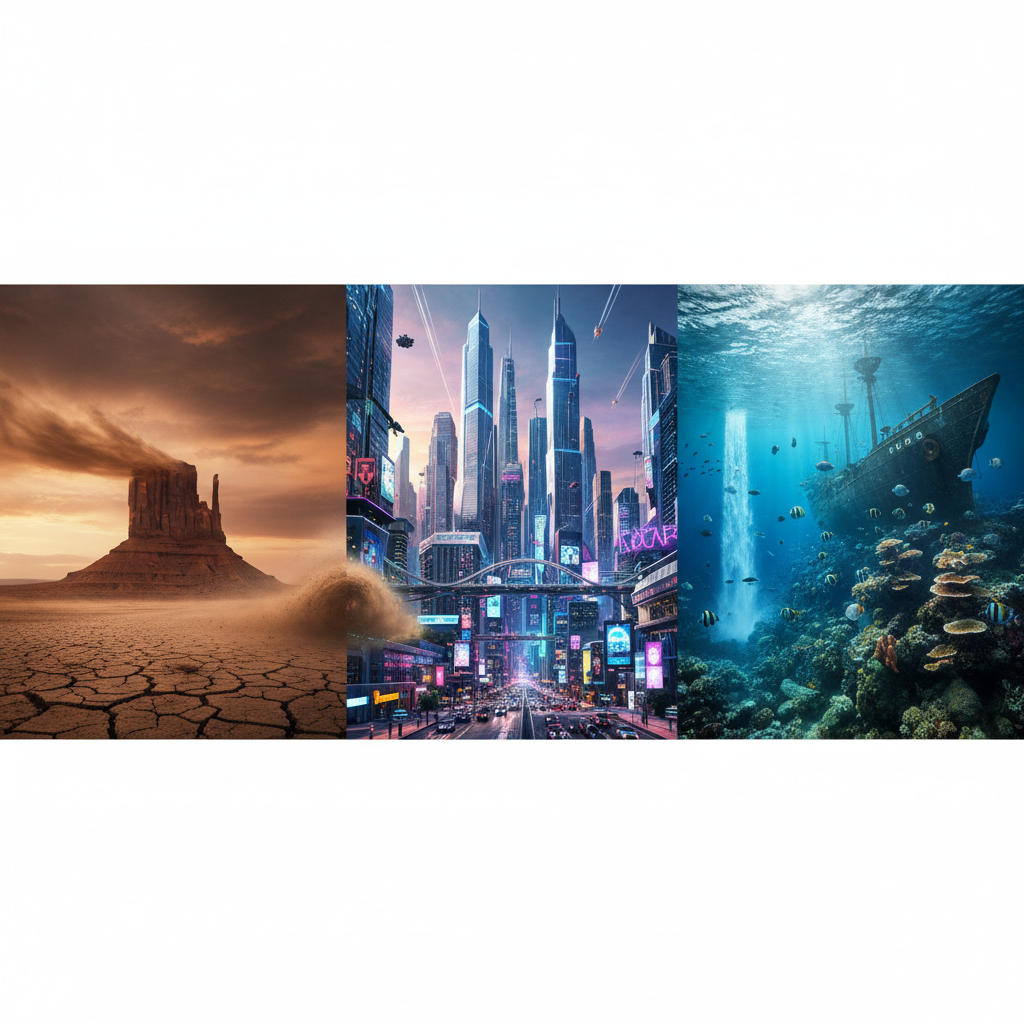
Ready to try your own multi-image edit? Open Seedream v4.5 Edit and upload your references.
Five Common Mistakes
1. Uploading the Wrong Image as Image 1
If you upload your reference board first and the product second, the model treats the reference as primary. Fix: always lead with your subject.
2. Not Naming Images in the Prompt
"Combine these images into a composite" is ambiguous. The model has to guess which element comes from where. Fix: say "image 1", "image 2", etc.
3. Conflicting Lighting Instructions
If image 1 has warm sunset light and image 3 has cool morning light, and your prompt asks for both, the model will pick one (usually image 1). Fix: pick one lighting reference and call it out explicitly.
4. Over-Constraining
A prompt with 15 "must preserve" clauses confuses the model. Fix: list 2–4 key things to preserve, let the model handle the rest.
5. Too Many Similar References
Uploading 5 photos of the same product at slightly different angles does not help — the model cannot triangulate. Fix: one product shot plus distinct environmental/style references.
Pro Tip: The "Style Anchor" Pattern
Add one image that has nothing to do with your scene but captures the exact mood you want — a vintage film still, a painting, a magazine spread. Reference it explicitly: "Apply the color palette and mood from image 4."
This works because Seedream v4.5 is strong at style transfer across unrelated subjects. It is how power users lock consistent aesthetics across a whole campaign.
Compose your first multi-image edit
Up to 10 references, 4MP output, 30–60 seconds. 50 free credits to try.
Open Seedream v4.5 EditSpeed Expectations by Input Count
Rough guide from internal testing:
| Inputs | Typical Speed | |--------|---------------| | 1 | 25–35 seconds | | 2–3 | 30–45 seconds | | 4–6 | 40–60 seconds | | 7–10 | 55–75 seconds |
Add 10–15 seconds for complex prompts. Multi-image edits are never slow enough to break flow — you can do 10 iterations in 10 minutes.
Workflow Tips for Production
- Build a prompt template once. "[Subject from image 1] in [environment from image 2] with [lighting from image 3]. Preserve X, Y, Z."
- Reuse reference images across batches. Your favorite lighting reference can anchor 50 different composites.
- Test with 2 images first. Get the basic composite working before adding style and mood references.
- Keep a library of style anchors. Maintain 10–20 moodboard images you know work well, and pull from them.
- Name inputs clearly. File names show up in the UI — "subject.jpg", "background.jpg", "mood.jpg" saves mental overhead.
Next Steps
Multi-image editing is the feature that makes Seedream v4.5 feel like a creative director instead of a glorified filter. Once you have the basic pattern down, you can tackle serious production work — see our product photography guide for a deep dive on commercial shots, or the compositing tutorial for more advanced scenes.
For a broader introduction to the model, read the Seedream v4.5 Edit complete guide. Then open /create/seedream-v4-5-edit and start uploading.