AI Image Inpainting with Seedream 5.0 Edit: Remove & Replace
Master AI inpainting with Seedream 5.0 Edit. Learn to remove unwanted objects, replace elements, repair damaged photos, and fill missing regions using natural language instructions.

Inpainting is the art of making unwanted things disappear and missing things exist. In Photoshop, it requires precise masks, clone-stamping, and content-aware fill tricks. Seedream 5.0 Edit does it by description: say what to remove, say what to replace, and get a seamless result in 10 seconds for $0.07. No mask. No brush. No skill required.
TL;DR
- Remove objects, replace elements, repair photos — all via text prompts
- 7 credits ($0.07) per edit, 5–15 seconds
- No masking, no selection tools, no brushes
- Handles lighting, perspective, and texture matching automatically
- 50 free credits = 7 free inpainting edits at seedance.it.com
What Inpainting Actually Does
Traditional inpainting fills a specified area with content that matches the surroundings. You paint a mask over what you want gone and the algorithm fills it in.
Seedream 5.0 Edit skips the mask entirely. You describe what to remove in natural language, and the model figures out what to select and how to fill it. For most edits, this is faster and more accurate than manual masking.
Edit your first photo with AI
No Photoshop skills needed. Just type what you want changed. $0.07 per edit.
Try Seedream 5.0 Edit FreeThe Three Inpainting Tasks
1. Object Removal
Tell the model what to delete:
"Remove the person in the red jacket on the left"
"Delete the trash can from the sidewalk"
"Remove the watermark from the bottom right corner"
"Erase all the power lines from the sky"
"Remove the photo-bomber behind the couple"
The model fills the gap contextually — matching background, lighting, and texture.
2. Object Replacement
Swap one element for another:
"Replace the sedan in the driveway with a vintage convertible"
"Change the plain wall to exposed red brick"
"Swap the coffee cup for a cocktail glass"
"Replace the backdrop with a wooden panel wall"
3. Photo Repair
Fix damaged photos:
"Remove scratches and dust spots from this old photo"
"Repair the tear in the corner of the image"
"Fix the faded area in the middle of the photo"
"Remove water damage stain from the top of the image"
Prompting Precision: The Key to Clean Removal
The difference between a clean inpaint and a messy one is specificity. Compare:
| Vague | Precise | |---|---| | "Remove the person" | "Remove the person in the blue shirt on the right" | | "Clean up the background" | "Remove the trash can and the street sign in the background" | | "Fix the photo" | "Remove scratches on the face and dust in the sky" | | "Delete the thing" | "Remove the traffic cone in the foreground" |
Always name the thing and its location. The model is much more accurate with explicit targets.
Common Removal Scenarios
Tourist Removal
"Remove all the tourists and background people, keep only the main subject and landmark"
Sign / Text Removal
"Remove the street sign on the left and the store text above the door"
"Erase all text and signage from the building, keep the structure"
Vehicle Removal
"Remove the parked cars from the street, preserve the buildings and sidewalk"
"Delete the van in the background, keep everything else"
Sky Clutter
"Remove all power lines, cables, and telephone poles from the sky"
"Delete the airplane contrails, leave a clean sky"
Distracting Background Objects
"Remove the construction crane in the background"
"Delete the billboard on the right side of the frame"
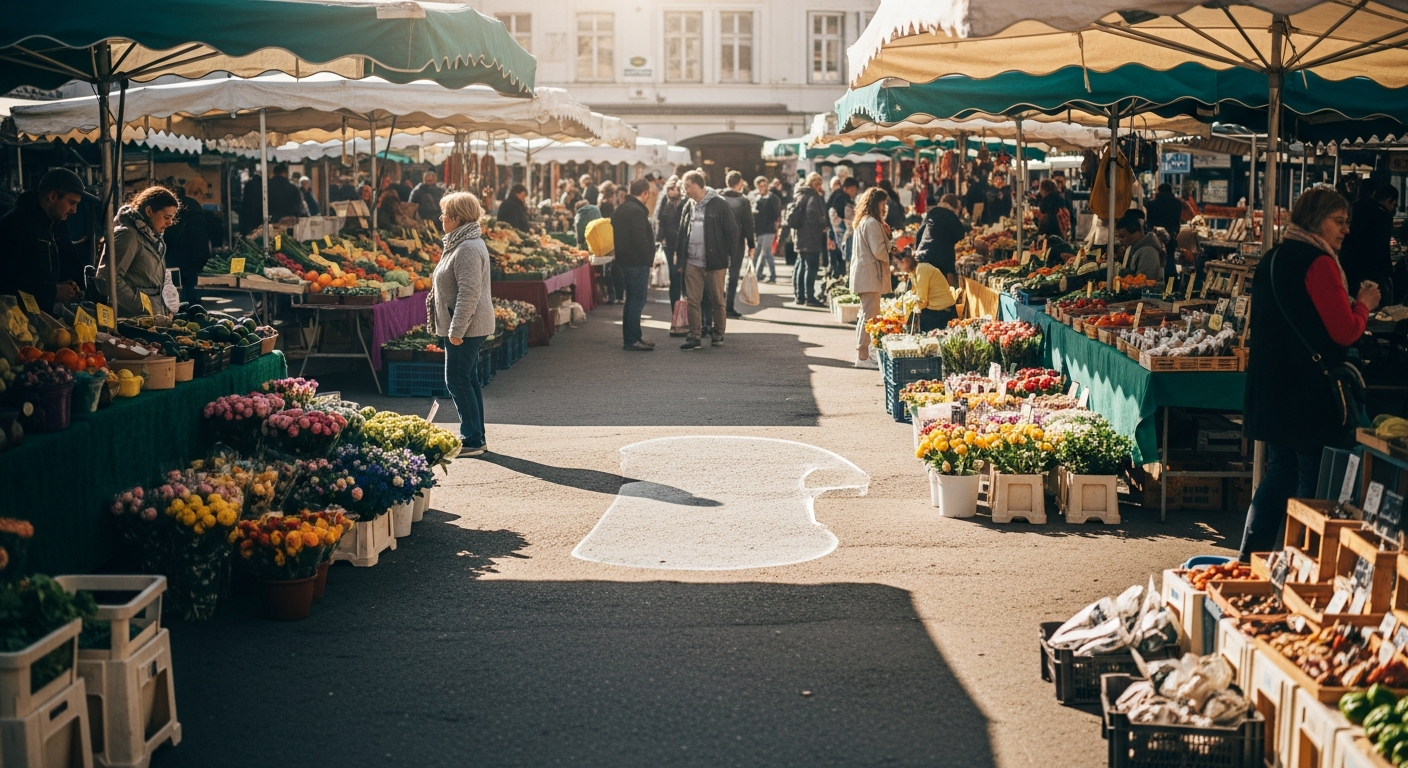
Want results like this? Try Seedream 5.0 Edit free →
Object Replacement Workflows
Wardrobe Changes
"Replace the t-shirt with a navy blue button-down shirt"
"Change the dress from red to emerald green"
"Swap the casual jacket for a formal black blazer"
Set Changes
"Replace the wooden table with a marble countertop"
"Change the plain wall to exposed brick"
"Swap the modern couch for a vintage leather chesterfield"
Product Swaps
"Replace the coffee cup with a tea mug, same style"
"Change the bottle to a can, keep the label area"
"Swap the apple for an orange in the same position"
Photo Restoration Workflow
Old photos often need multi-pass restoration:
Pass 1 — Damage removal: "Remove all scratches, dust spots, and tears from this photograph, preserve the subjects and details"
Pass 2 — Fading fix: "Restore faded contrast and recover lost detail in shadows and highlights"
Pass 3 — Sharpening: "Sharpen facial features and fine details, reduce any blur"
Optional Pass 4 — Colorization: see the colorize guide
Total for full restoration: 21–28 credits = $0.21–$0.28.
Compare to professional photo restoration services: $50–$500 per photo.
Make distractions disappear
No masks. No clone-stamping. Just name what to remove and watch the model fill it seamlessly. First 7 edits free.
Try Your First Inpaint FreeAdvanced Techniques
Selective Removal With Preservation
When removing something close to a subject, be explicit about what to keep:
"Remove the backpack the person is holding, preserve the person and their pose exactly"
"Delete the drink in the subject's hand, keep the hand and fingers natural"
Multiple Removals in One Pass
Save credits by combining removals:
"Remove the person on the left, the trash can on the right, and the power lines in the sky"
One prompt, three removals, 7 credits.
Replace With Specific Context
"Replace the concrete background with lush green trees, matching the outdoor lighting"
"Change the floor from tile to hardwood, matching the warm room lighting"
When Inpainting Struggles
Even Seedream 5.0 Edit has limits. Be aware:
- Very large area removals (>50% of image) may need multiple passes
- Complex overlapping subjects — removing one person touching another is harder than isolated objects
- Fine reflective surfaces (mirrors, water) — can produce artifacts
- Text preservation — removing text near other text is tricky
- Extreme lighting situations — heavy backlighting or shadow work
For these edge cases, chain multiple passes or hand-off to Photoshop for finishing.
Real Workflow: Clean Up a Vacation Photo
Starting image: Beautiful sunset landmark photo with tourists and power lines.
Edit 1: "Remove all tourists and background people from the scene" (7 credits)
Edit 2: "Remove all power lines and cables from the sky" (7 credits)
Edit 3: "Clean up the foreground: remove litter and any distracting objects" (7 credits)
Total: 21 credits = $0.21. Result: postcard-ready sunset shot.
Real Workflow: Product Photo Cleanup
Starting image: Product shot with dust specks and fingerprints.
Edit 1: "Remove all dust specks, fingerprints, and smudges from the product surface" (7 credits)
Edit 2: "Clean up background: remove minor scuffs and imperfections on the backdrop" (7 credits)
Total: 14 credits = $0.14. Result: e-commerce-ready product shot.
Common Mistakes
| Mistake | Fix | |---|---| | Vague target | Name the object specifically | | No location | Add "on the left", "in the background" | | Over-prompted | Keep prompts to one or two clean actions | | Wrong object removed | Specify color/position ("red jacket", "left side") | | Artifacts in fill | Run a second pass to clean up |
Cost vs Alternatives
| Task | Seedream 5.0 Edit | Alternative | |---|---|---| | Remove tourist | $0.07 | 5 min Photoshop or $10 Fiverr | | Restore old photo | $0.21 | $50–$300 restoration service | | Remove object | $0.07 | 10 min manual work | | Replace element | $0.07 | 20 min Photoshop compositing |
Pricing
| Pack | Credits | Price | Inpaints | |---|---|---|---| | Starter | 1,050 | $10 | ~150 | | Popular | 2,750 | $25 | ~390 | | Pro | 5,750 | $50 | ~820 | | Max | 12,000 | $100 | ~1,710 |
Credits never expire. Full pricing.
Next Steps
Try your first inpaint free → — 50 credits on signup.